User Management
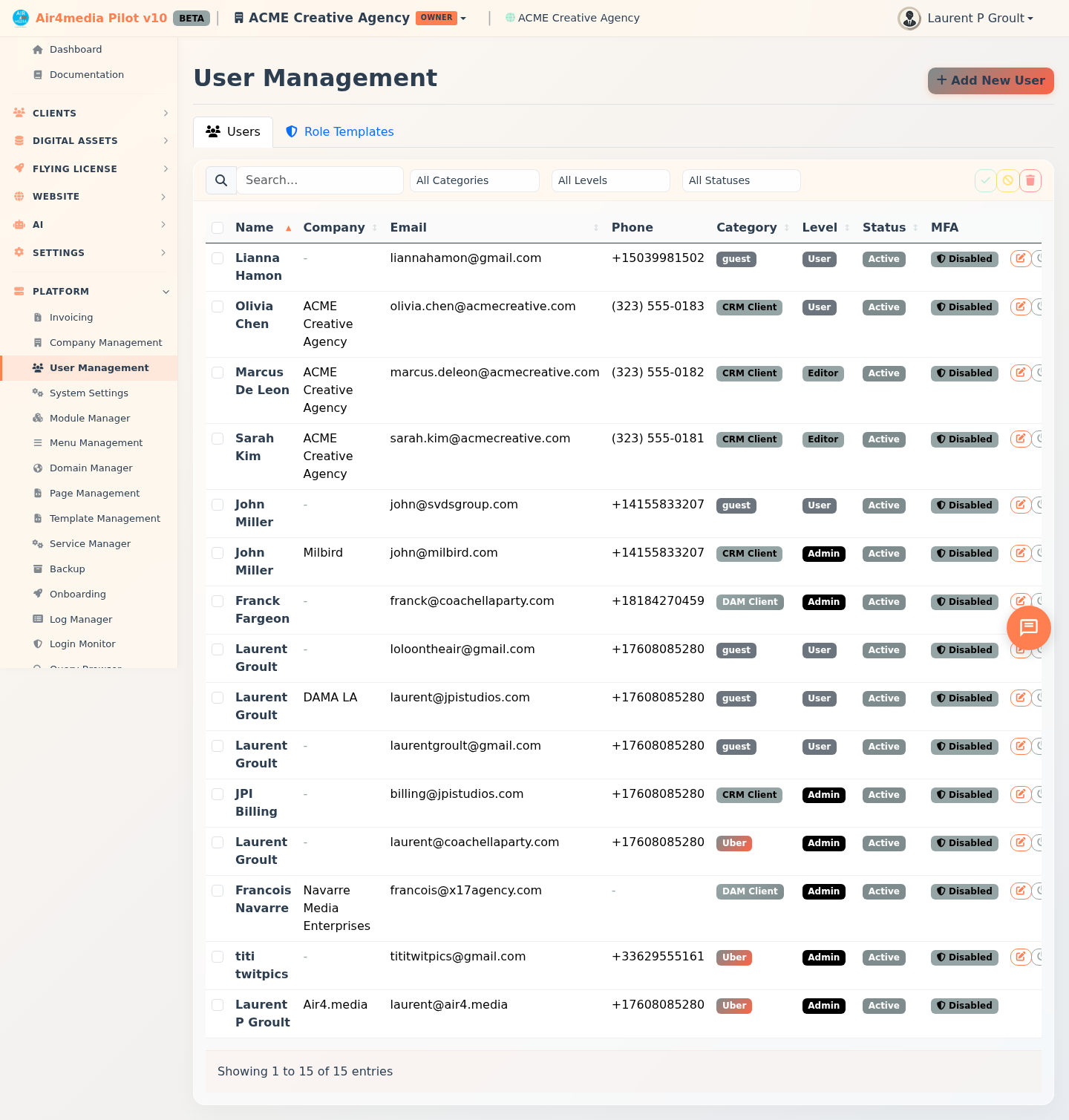
Create, edit, and manage all platform users. Control access levels, account status, and security settings from one central page. At ACME Creative Agency, for example, this page shows every team member — designers, account managers, and admins — with their role, login status, and two-factor authentication at a glance.
Key Features
- User List: View all users with name, company, email, phone, category, level, status, and MFA indicators
- Search & Filter: Search by name, email, or company — filter by category, access level, or account status
- Add New User: Create accounts with full contact details, access settings, and MFA options (uber admins only)
- Edit User: Update any user's profile, permissions, status, and security settings
- Toggle Status: Quickly activate or suspend individual accounts with one click
- Batch Actions: Activate, suspend, or delete multiple users at once
- View As User: Log in as any user to see the platform exactly as they do (uber admins only)
- Role Templates: View, configure, create, and delete permission templates for each role type (uber admins only)
- Per-company Permissions: Assign a specific role template to each of a user's companies individually
How to Use
Adding a User
- Click Add New User in the top right (uber admins only)
- Enter the user's full name and email (required)
- Optionally add company name, phone, and address — use Search Address to auto-fill all address fields via Google Places
- Set Category, Level, and Status
- Enable MFA methods as needed — Email, SMS, or Google Authenticator
- Click Save Changes
New users are created with a temporary password and a status of "New."
Editing a User
- Click Edit on any user row
- Update the desired fields in the form
- The right panel shows all companies for that user — use the dropdown next to each company to assign a role template
- Click Save Changes
Changing Status and Deleting Users
- Click Toggle Status on a row to switch between Active and Suspended
- Select multiple users and use Activate Selected / Suspend Selected / Delete Selected from the batch menu
- You cannot change status or delete your own account
Viewing the Platform as Another User
Click View As on any user row (uber admins only). The platform reloads showing exactly what that user sees — helpful for checking permissions or troubleshooting access. Return to your admin view from the User Management page.
Managing Role Templates
- Click the Role Templates tab (uber admins only)
- Click any template card to open its permissions editor — toggle View, Edit, Delete, and Export per page, then click Save Changes
- Click Create Template to add a custom template with a name, description, and plan tier
- Click the delete icon on any custom template to remove it (system templates cannot be deleted; a template must be unassigned from all companies before deletion)
User Categories & Levels
Categories define which platform modules a user can access:
- Uber — Full platform access (internal team)
- DAM Client — Digital Asset Management only
- CRM Client — CRM only
- Guest — Limited access
Levels define what a user can do within their category:
- Admin — Full control including settings and user management
- Editor — Can create and edit content
- User — Read and limited interaction only
Tips
- Use the Status filter to quickly find all suspended or new accounts
- The MFA column shows at a glance whether two-factor authentication is enabled for each user
- Assign different role templates per company for fine-grained, company-level access control
- Batch actions skip your own account automatically — you cannot accidentally suspend or delete yourself
- Enabling Edit, Delete, or Export on a template page automatically enables View as well