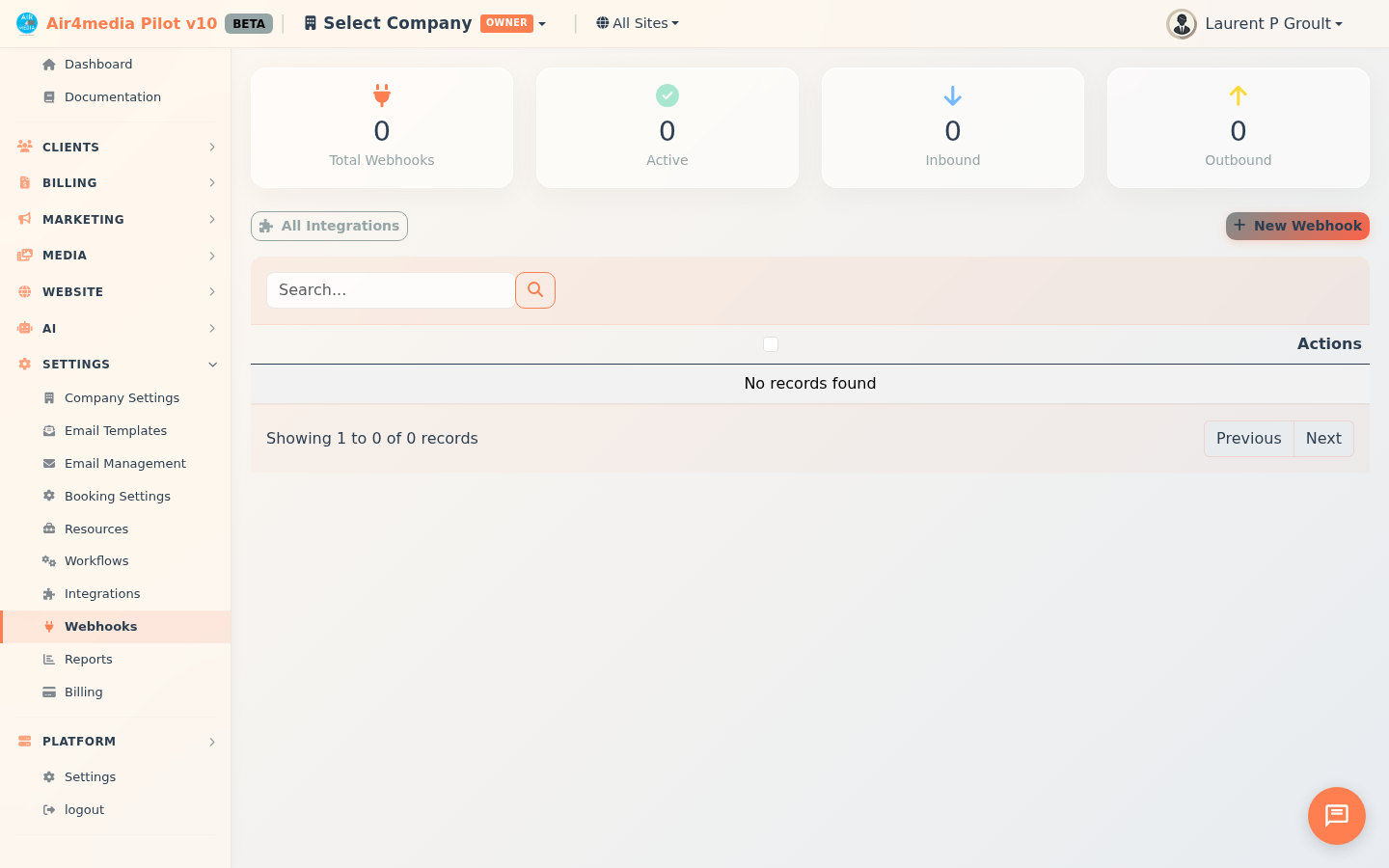
Webhooks
Connect your CRM to external apps and services by automating data exchange whenever key events happen in your account. ACME Creative Agency, for example, uses webhooks to notify their project tools the moment a client pays an invoice or a new lead comes in.
Key Features
- Outbound Webhooks: Automatically notify an external service (Zapier, Slack, or a custom app) when something happens in your CRM — a signed contract, a paid invoice, a new lead.
- Inbound Webhooks: Receive data from external services into your CRM using a unique URL you share with the other service.
- 12 Trigger Events: Choose exactly which event fires the webhook — from Lead Created to Portal Message.
- Custom Payloads: Define what data gets sent using a flexible template with dynamic variables like contact name and email.
- Trigger Filters: Add optional conditions so a webhook only fires when specific criteria are met.
- Test & Monitor: Send a test payload at any time and track success and error counts per webhook.
- Enable / Disable: Toggle any webhook on or off without deleting it.
- Dashboard Stats: See at a glance how many webhooks are total, active, inbound, and outbound.
Trigger Events
Choose from 12 events: Lead Created, Form Submitted, Quote Accepted, Contract Signed, Invoice Paid, Invoice Sent, Appointment Booked, Status Changed, Tag Added, Payment Received, Project Completed, or Portal Message.
How to Use
Create an Outbound Webhook
- Click New Webhook.
- Enter a name and select Outbound (we call them).
- Choose the trigger event.
- Enter the external service's endpoint URL and HTTP method (POST, PUT, or PATCH).
- Optionally add custom headers (e.g., an authorization token), a payload template, and trigger filter conditions.
- Click Save Webhook.
Create an Inbound Webhook
- Click New Webhook.
- Enter a name and select Inbound (they call us).
- Choose the trigger event this incoming data represents.
- After saving, copy the generated Webhook URL and paste it into the external service.
Test a Webhook
Click the Test button (vial icon) on any outbound webhook to send a sample payload and confirm it's working.
Enable or Disable
Click the Toggle button to activate or pause a webhook without deleting it.
Tips
- Use payload templates with
{{contact.name}}and{{contact.email}}style variables to send dynamic, personalized data to external services. - Error counts appear in red — click Test to re-verify a broken connection after fixing the endpoint.
- The Last Fired column shows exactly when each webhook last triggered, making it easy to spot stale or unused connections.
- Use the Direction and Status filters to quickly find a specific webhook in a long list.
- Select multiple webhooks and use Delete Selected to clean up in bulk.