Tools — Import Data
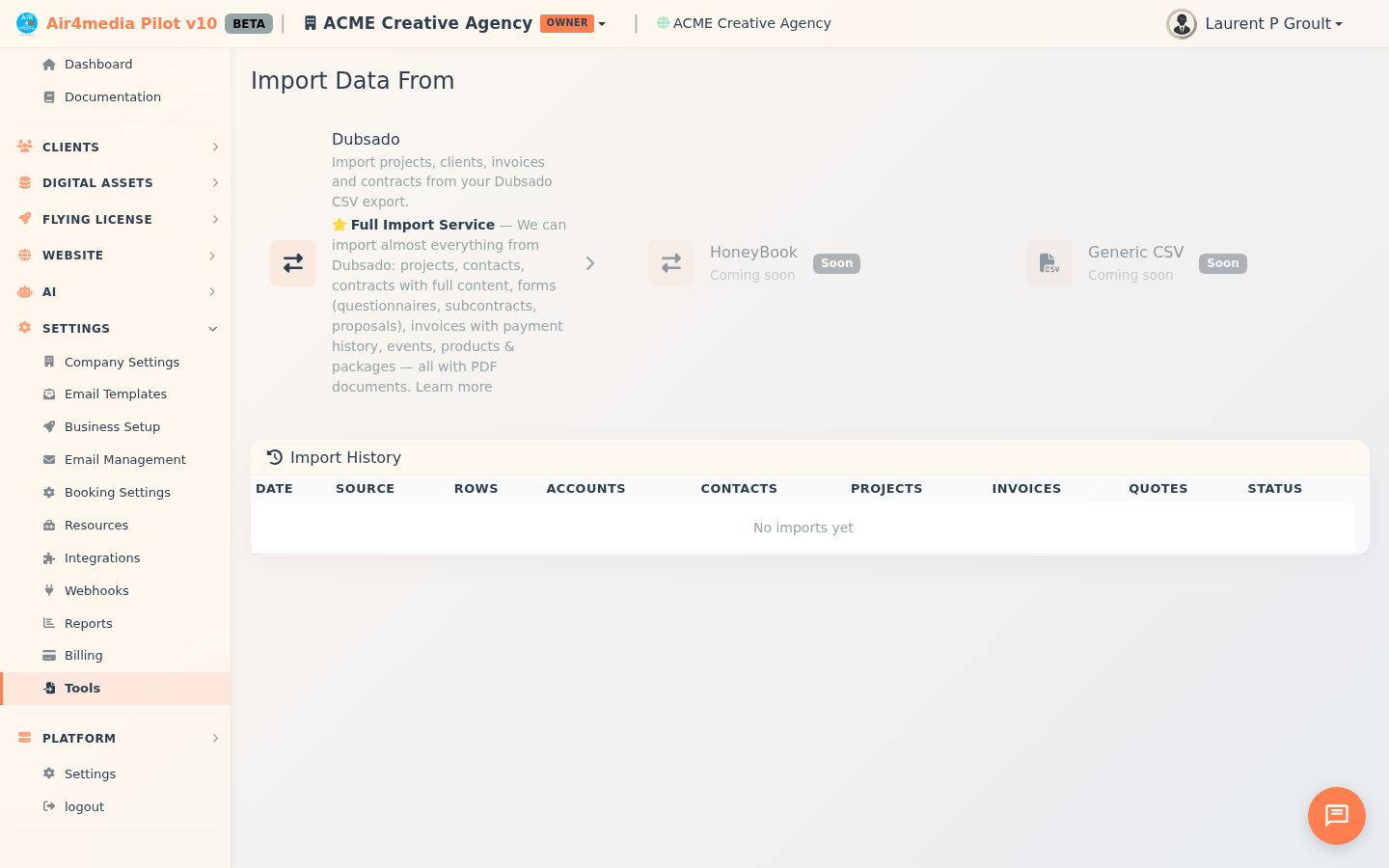
The Import Data tool lets you migrate your existing client history into Air4.media from platforms like Dubsado. In one process, ACME Creative Agency can bring over years of projects, contacts, invoices, and contracts — so your full client history is available from day one.
Key Features
- Dubsado CSV Import: Upload a CSV export from Dubsado and import projects, contacts, invoices, and contracts into your CRM.
- Smart Preview: Before anything is imported, see a full data summary — total rows, revenue, unique clients, companies, and a year-by-year win rate and revenue breakdown.
- Automatic Status Mapping: Dubsado statuses are intelligently converted — paid past projects become Completed clients, unpaid leads stay as Prospects, active WIP bookings are preserved as In Progress.
- Selective Import: Choose exactly what to bring in — accounts, contacts, projects, invoices, and/or contracts. Toggle each category on or off.
- Merge Existing Records: If a client email already exists in your CRM, the import can merge tags and upgrade their status rather than creating duplicates.
- Rollback Anytime: Every import can be fully undone from the results screen or the Import History log.
- Full Import Service: For a complete migration — including contract content, questionnaires, proposals, PDFs, and calendar events — contact the Air4.media team for a custom quote.
- Import History: A log of all past imports shows what was created, when, and lets you rollback any batch.
How to Use
- Go to Tools in the sidebar and open the Import Data page.
- Click the Dubsado card to begin (HoneyBook and Generic CSV are coming soon).
- Step 1 – Upload: Export your data from Dubsado as a CSV file, then click Select CSV File and choose it.
- Step 2 – Preview: Review the summary cards showing your total rows, revenue, and client count. Check the yearly breakdown to confirm the data looks right before continuing.
- Step 3 – Configure: Choose what to import (accounts, contacts, projects, invoices, contracts). Optionally add default tags —
dubsado-importis always added automatically. Enable "Update existing records" to merge data rather than skip duplicates. - Click Start Import, review the confirmation summary, then click Confirm & Import.
- Step 4 – Results: See exactly how many accounts, contacts, projects, invoices, and contracts were created. If anything looks wrong, click Rollback This Import to undo everything.
Tips
- Run the import in a test pass first — rollback is instant and complete, so there's no risk in trying.
- The "dubsado-import" tag is added to every record, making it easy to filter or bulk-manage imported data later.
- If you have years of Dubsado history and want contracts, forms, and PDFs included, use the Full Import Service (click "Learn more" on the Dubsado card) — the Air4.media team handles the full migration for you.
- Check the Import History section at the bottom of the page to revisit or rollback any previous import batch.