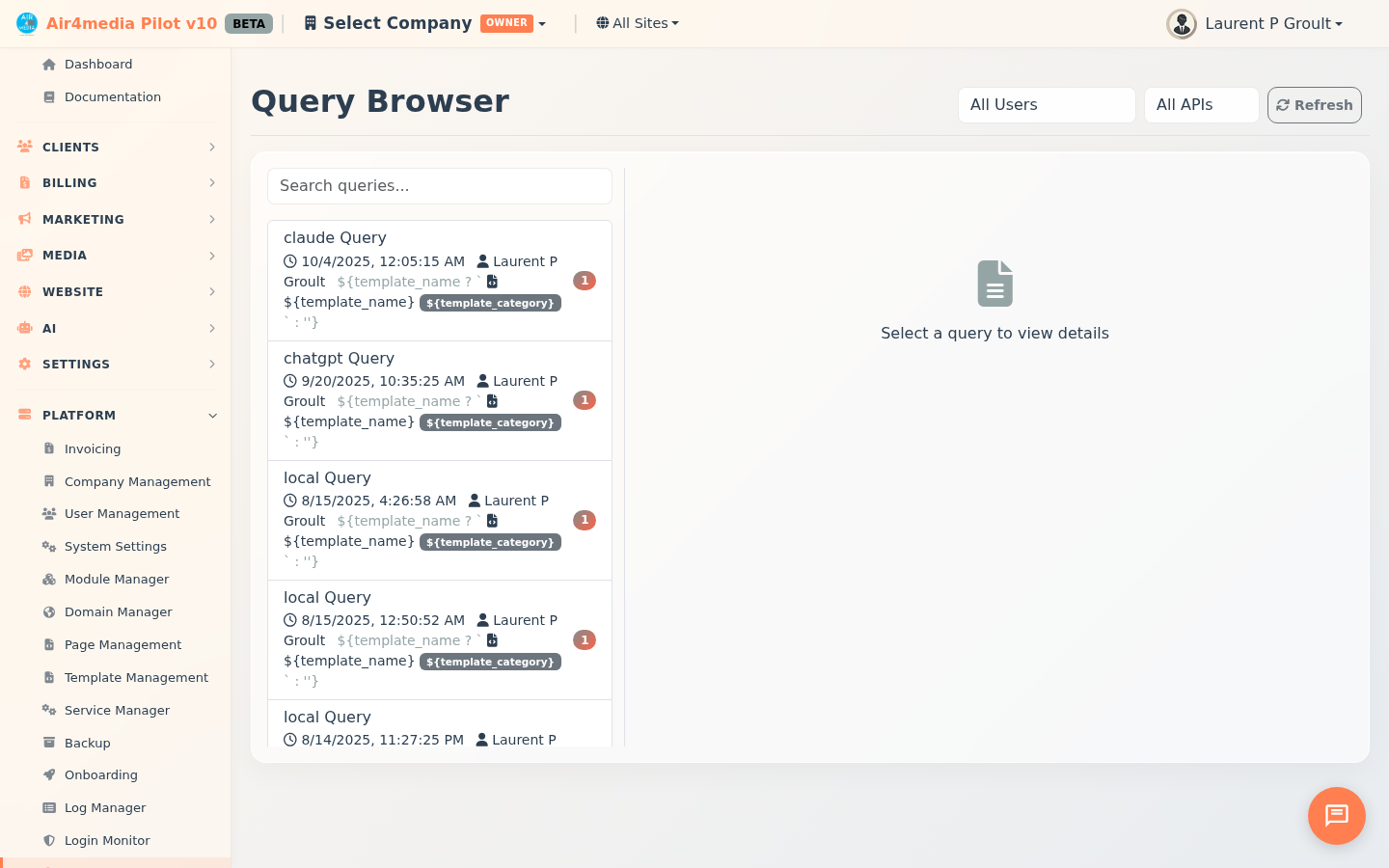
Query Browser
The Query Browser gives platform administrators a complete view of every AI interaction across the account — including the exact prompt sent and the full response returned by Claude or ChatGPT.
Key Features
- Query List: Scrollable list of all AI interactions, newest first, showing up to 50 at a time
- Filter by User: Narrow results to queries from a specific team member — for example, see only queries submitted by a particular ACME Creative Agency user
- Filter by AI: Show only Claude queries, only ChatGPT queries, or all at once
- Search: Type any keyword to search across prompt text, response content, and AI type — results refresh automatically
- Query Details: Click any entry to view the full prompt, the complete AI response, who sent it, and when
- Template Tracking: If a query was sent using a saved AI template, the template name and category appear in both the list and the detail view
- Version Badge: Each query shows which version of the template was active when it was sent
- Backup File Viewer: When a query was sent with a backup file attached, a View button lets you inspect that file in a popup
- Extracted Files: Files referenced inside an AI response are automatically detected and listed as clickable buttons in the detail view
- Save to Database: From the file viewer, save any extracted file for future reference — or update it if the content changes
- Copy to Clipboard: Copy the full query or full response in one click; also copy file content directly from the viewer popup
How to Use
- Open Query Browser from the sidebar menu
- The left panel loads the 50 most recent AI queries automatically
- Use the User dropdown to filter by a specific team member, or the All APIs dropdown to focus on Claude or ChatGPT
- Type in the search box to filter by keyword — the list updates as you type
- Click any entry to open its full details in the right panel
- Scroll through the prompt and response; use Copy Query or Copy Response to copy either to your clipboard
- If an AI template was used, its name appears under Used Template — hover over it to see the template category
- If a backup file was attached to the query, click View under Backup File to inspect its contents in a popup
- If the response references files, they appear under Extracted Files — click any file button to open the content viewer
- In the file viewer, click Save to Database to store the file, Update in Database to overwrite a previously saved version, or Copy Content to copy it to your clipboard
- Click Refresh at any time to reload the list with the latest queries
Tips
- Saved files show a green Saved badge on their button in the Extracted Files list — at a glance you can tell what's already been stored
- If a saved file differs from the currently extracted version, a View Saved Version button appears in the file viewer — click it to toggle between the two versions and compare them
- Combining the User filter with a keyword search is the fastest way to track down a specific interaction — for example, filter to one user and search "invoice" to find all invoice-related AI work at ACME
- The version number badge on each list entry tells you which iteration of the template was used, making it easy to trace results back to a specific template revision