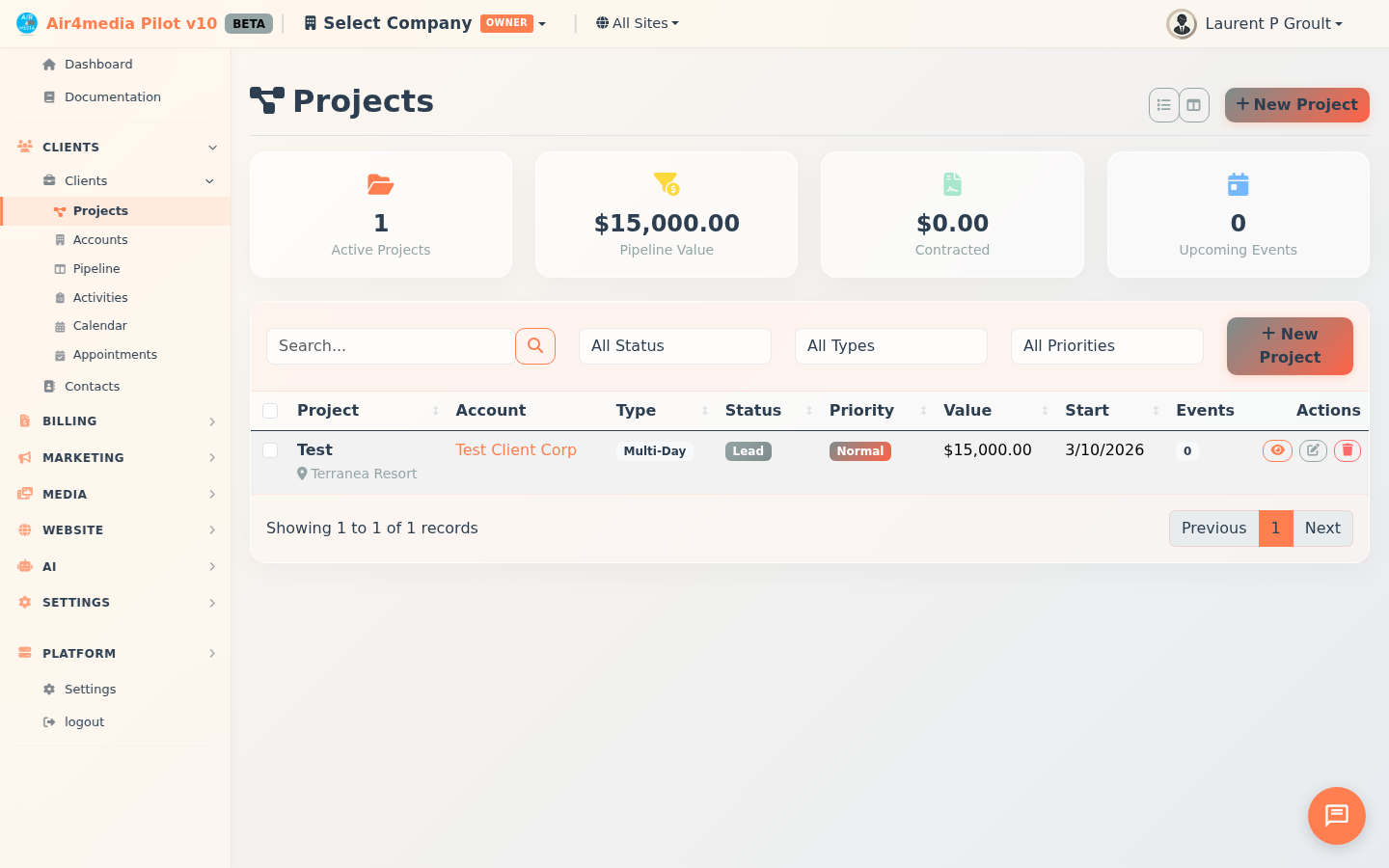
Projects
Manage every project and event from first proposal to final payment. ACME Creative Agency's full pipeline — proposals, contracts, invoices, expenses, and team assignments — all live here in one place.
Key Features
- Two Views: Switch between a visual card grid and a sortable list table with payment totals and event counts
- Clickable Stats: Cards at the top show Active, Proposed, In Production, and Completed counts — click any to filter instantly
- Project Types: Single Event, Multi-Day Event, Production, Rental, Service, Retainer, or Custom
- Status Tracking: Move projects through Proposed → Contracted → Planning → In Production → Completed (or On Hold / Cancelled)
- Priority Levels: Low, Normal, High, or Urgent — color-coded throughout
- Events: Schedule multiple event dates within a project, each with its own type (Ceremony, Reception, Rehearsal, Setup, Breakdown, Meeting, Performance), times, and venue
- Quotes: Create and send quotes, set validity dates, and convert accepted quotes to contracts or invoices; save reusable templates
- Documents: Dual electronic signing — you and your client both sign directly in the platform; apply templates; generate invoices from signed contracts; share via a secure link
- Invoices & Payments: Create invoices, set up recurring billing (weekly to annual), record payments (Stripe, PayPal, bank transfer, check, cash, Venmo, Zelle), and share public payment links
- Budget & Expenses: Log Direct Expenses, Vendor Bills, or Resource Costs across 10 categories (Equipment, Labor, Venue, Travel, Materials, and more); link to a vendor; mark items as billable to the client
- People & Resources: Assign client contacts, team members, and external resources with custom roles; sync resource costs directly into the Budget tab
- Activity Log: Full chronological history of every action taken on a project
How to Use
- Click New Project, fill in the General tab (name, client, type, status, priority, estimated value), add dates and venue on the Dates & Venue tab, add internal notes if needed, then click Save Project
- Click a project card — or the eye icon in list view — to open the project detail panel
- Use the tabs inside the detail panel:
- Events — schedule dates, times, and venues for each event in the project
- Quotes — draft, send, and track quotes; convert accepted quotes to documents or invoices; use saved templates
- Documents — send contracts for dual electronic signing; generate invoices once both parties have signed
- Invoices — create invoices, record payments, set up recurring billing, and copy payment links
- Resources — assign team members or equipment with roles; use Sync Resource Costs to pull their costs into the budget
- Budget — log expenses by type and category; set annual revenue and expense targets; view live profit/loss
- People — assign contacts and stakeholders with roles to track everyone involved
- Activity — review the full action history
- Switch to List View (list icon in the toolbar) for a sortable table with payment totals and event counts
Tips
- Click any stat card at the top to filter by that status — click again to clear
- Use the toolbar filters to narrow by status, type, or priority without leaving the main view
- The Budget tab shows estimated value, contracted value, total expenses, and live profit/loss — review it before sending a final invoice
- Mark expenses as Billable to flag costs that should be passed on to the client when invoicing
- Follow the recommended billing workflow: Quote → Document (signed contract) → Invoice
- Save quote and document content as Templates to speed up future projects
- Documents support dual electronic signing — once both parties sign, the status updates automatically
- Click the expand icon in the project detail header to open the panel in fullscreen mode
- Filter by Urgent priority to surface the projects that need immediate attention