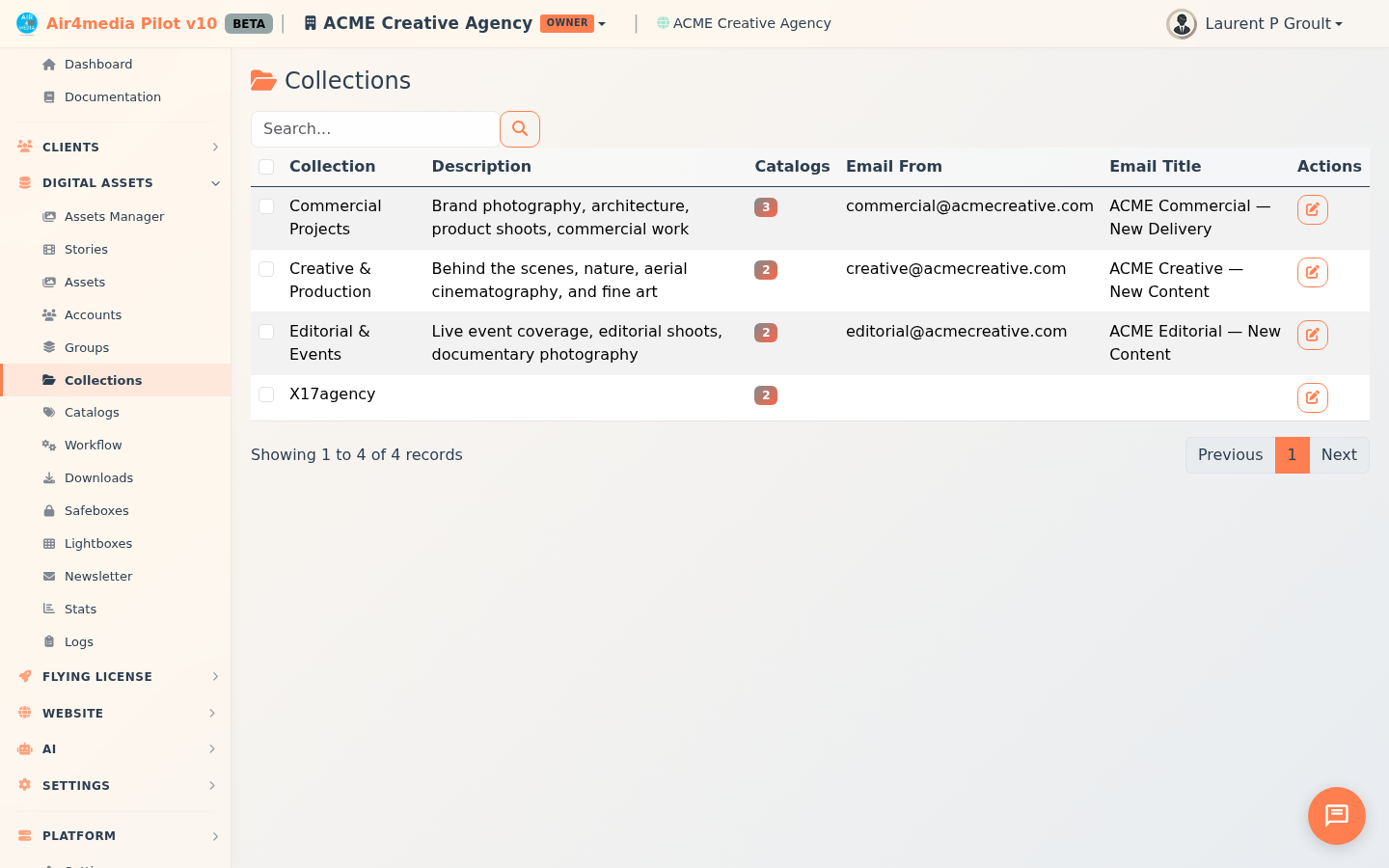
Collections
Collections are named groupings of catalogs inside your AirDAM portal. Each collection also carries its own email digest settings, so you can deliver curated content to the right audience directly from the platform.
Key Features
- Site-scoped: Collections belong to your selected DAM site. Use the site selector in the top bar to switch portals — the list updates instantly.
- Catalog count: A badge on each row shows how many catalogs belong to that collection at a glance.
- Sortable list: Click the Collection column header to sort alphabetically; click again to reverse.
- Email digest settings: Every collection stores a sender address, subject line, digest recipient list, and a full email template (header, body, and footer) ready to send.
- Edit dialog: Click the edit icon on any row to open a full edit dialog for that collection — update name, description, and all email digest fields in one place.
How to Use
- Select your DAM site from the top bar. The Collections list loads automatically. For ACME Creative Agency, this might be the acme-creative portal.
- Scan the list to see each collection's name, description, catalog count, sender address, and email title — for example, collections like "Spring Campaign Assets" or "Brand Guidelines" alongside their catalog counts.
- Click the Collection column header to sort alphabetically — handy when managing a large library.
- Click the edit icon on any row to open the edit dialog. Update any of these fields:
- Name and Description — how the collection is labeled in the portal
- Digest List — the email addresses that receive this collection's digest
- Email From — the sender address shown in digest emails
- Email Title — the subject line of the digest email
- Template Header / Body / Footer — the full layout and copy of the email
- Click Save. The list refreshes to reflect your changes.
Tips
- Use collections to group catalogs by campaign, client, or content type — ACME Creative Agency could maintain separate collections for each active client project.
- Check the Catalog count badge before sending a digest. A count of zero means the collection has no content yet.
- If the list is empty after selecting a site, no collections have been set up for that portal yet — contact your DAM administrator to get started.
- The email template fields (header, body, footer) support multi-line content, so you can build richly formatted digest emails directly from the edit dialog.