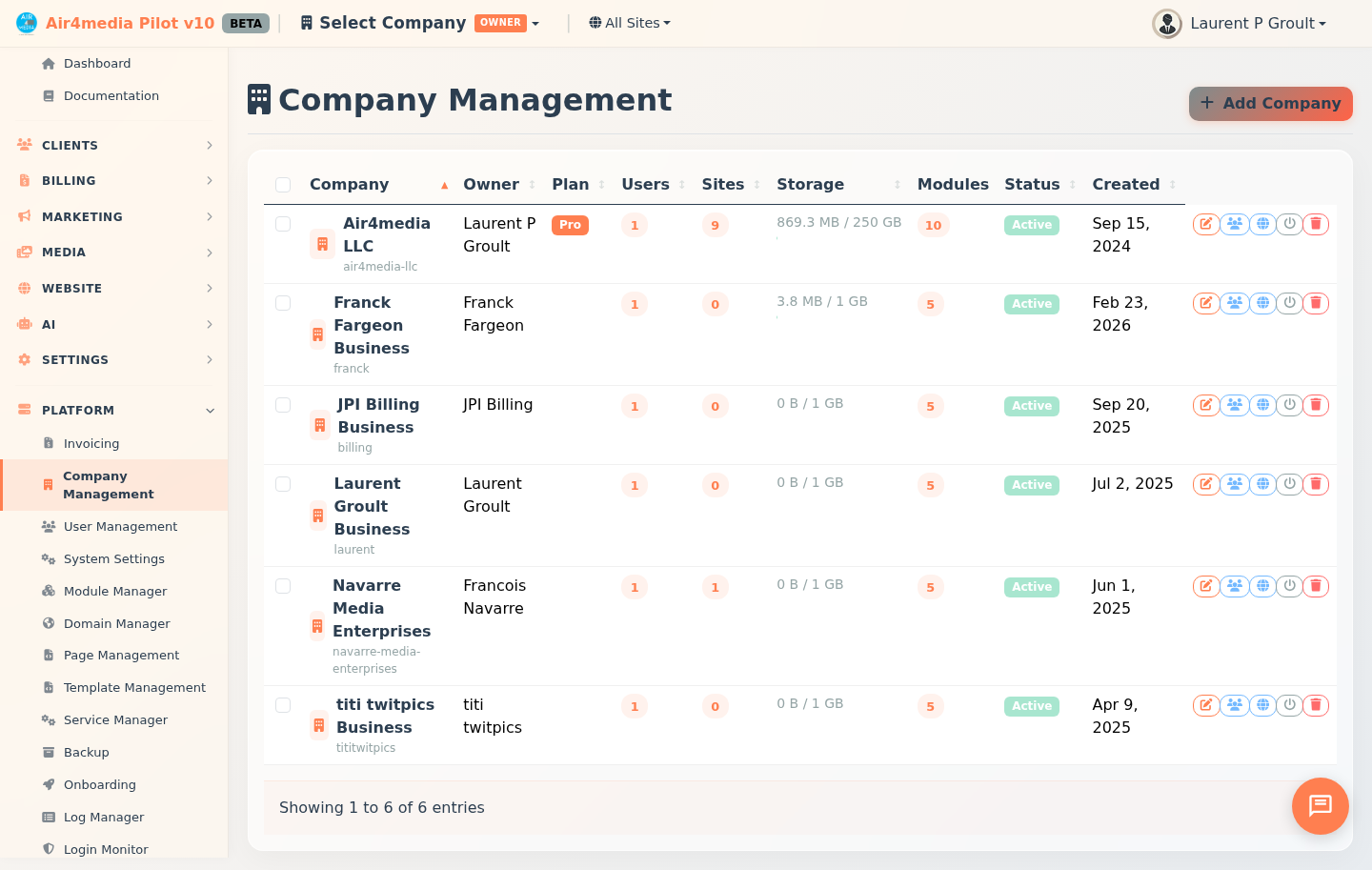
Company Management
A platform-level tool for creating and managing client companies, their members, subscription plans, and enabled modules. Everything about a company like ACME Creative Agency — its team, plan, active modules, and AI credits — is managed from this single page.
Key Features
- Company List: Browse all companies with sortable columns for name, owner, plan, user count, site count, storage usage, beta status, and creation date.
- Search & Filter: Search by company name or email, and filter by status (Active, Trial, Suspended, Cancelled), subscription plan, or beta status.
- Add & Edit Companies: Create or update companies across three tabs — Details, Plan & Options, and Modules.
- Logo Upload: Upload a company logo (JPG, PNG, SVG, or WebP, up to 5 MB) from the Details tab. A preview appears instantly; click remove to clear it.
- Module Control: Enable or disable modules per company — CRM, DAM, Airmail, Airblog, and Airforms. The list shows a count badge; hover it to see which modules are active.
- Beta Status: Mark a company as a beta participant to give them plan features for free. Beta companies display a Beta badge and show their current AI credit balance.
- Startup Package: Grant the Startup Package add-on. Activation date and expiry are tracked in the Plan & Options tab.
- Grant Credits: Add AI credits directly to a company's balance from the list row or the Plan & Options tab.
- Member Management: View active members, add existing platform users, change roles, or remove members.
- Email Invitations: Invite people by email with a secure link valid for 7 days. Existing users see Accept Invitation; new users see Create Account & Join.
- Auto-Join: When an invited person logs in or signs up, pending invitations for their email are accepted automatically — no link click needed.
- Sites View: See all sites associated with a company and their status.
- Bulk Actions: Select multiple companies to activate or suspend them at once.
How to Use
Add a Company
- Click Add Company in the top right.
- Enter the company name, email, phone, and website. Optionally upload a logo. Set the status and assign an owner.
- Switch to Plan & Options to select a subscription plan.
- Switch to Modules and tick which modules to enable.
- Click Save. A default site is automatically created for the new company.
Edit a Company
- Find the company in the list and click Edit on its row.
- Update any fields across the Details, Plan & Options, or Modules tabs.
- Click Save.
Toggle Beta or Startup Package
Open the company's Edit modal and go to Plan & Options. The options table shows Beta Tester, Startup Package, and AI Credits — each with its current status, activation date, and expiry. Click the toggle button next to an option to enable or disable it. Only platform admins can perform this action.
Grant Credits
- Click Grant Credits on a company row (or the + button in the Plan & Options tab).
- Enter the number of AI credits to add and click Grant Credits. The balance updates immediately.
Manage Members
- Click Members on any company row.
- To add an existing user: type their name or email in the search box, select them, choose a role, and click Add.
- To invite someone new: enter their email under Invite by Email, choose a role (Admin, Editor, or User), and click Invite.
- To change a member's role: use the role dropdown next to their name.
- To remove a member: click the × on their row.
Pending Invitations
Pending invitations appear below the member list. Click Resend to issue a fresh 7-day link, or Cancel to revoke the invitation.
Change Company Status
- Click Toggle Status on a row to switch between Active and Suspended.
- Use checkboxes and Activate Selected or Suspend Selected for bulk updates.
Delete a Company
Click Delete on any company row. This permanently removes the company and all its stored files. This action cannot be undone.
Member Roles
| Role | Description |
|---|---|
| Owner | Full control; cannot be removed |
| Admin | Can manage members and invitations |
| Editor | Can create and edit content |
| User | Standard access |
Tips
- Storage turns orange above 75% and red above 90%.
- The company owner is automatically added as a member when a company is created.
- Invitations expire after 7 days. Use Resend to issue a fresh link.
- Owner role can only be assigned by adding an existing platform user via the search field — it cannot be set via email invitation.
- Auto-join means invited users don't need to click the link — logging in or signing up with the invited email is enough.
- Toggle Status only switches between Active and Suspended. To set Trial or Cancelled, use Edit.
- The primary company (Air4.media LLC) cannot be deleted.
- Beta status, Startup Package, and Grant Credits are restricted to platform-level admins.