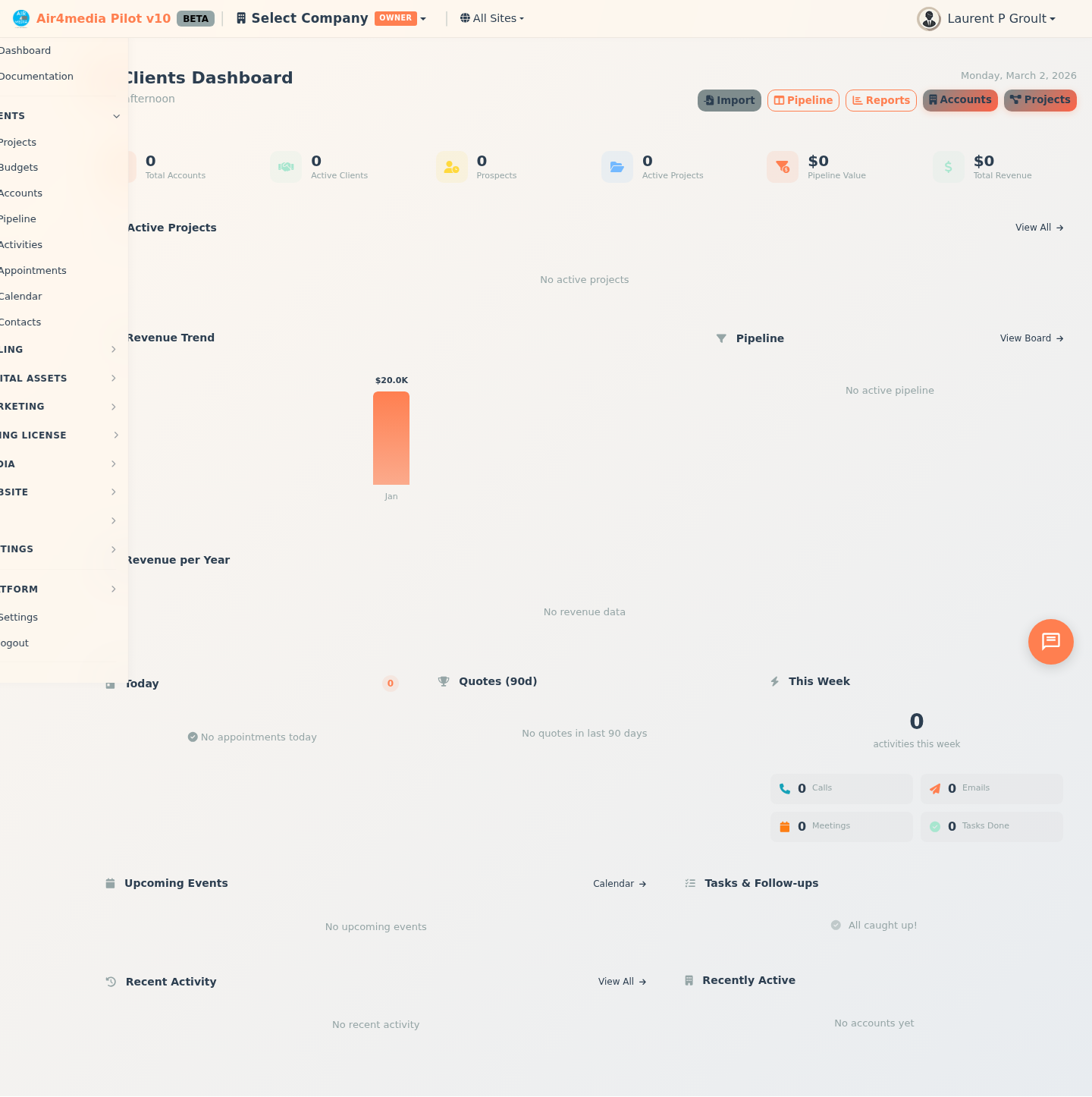
Clients Dashboard
Your central command center for managing clients, projects, revenue, and team activity. For an account like ACME Creative Agency, the dashboard brings together every active project, pending invoice, upcoming event, and open task in one view — no hunting across separate screens.
Getting Started
New accounts see a welcome screen with a 5-step checklist (add an account, create a project, set up your pipeline, send a quote, track revenue) and feature cards linking directly to each section so you can jump right in.
Key Features
- KPI Stats Bar: Live counts for total accounts, active clients, prospects, active projects, pipeline value, and total revenue — all clickable to open filtered views.
- Active Projects Timeline: In-progress projects with status, priority, client name, and dates. Click any row to open the full project detail panel.
- Revenue Trend Chart: Collected revenue over the past 6 months with a badge showing this month vs. last month.
- Annual Revenue Chart: Total realized revenue by year, so you can see growth at a glance.
- Pipeline Funnel: Open projects by stage — Proposed, Contracted, Planning, In Production, On Hold — with deal counts and values per stage.
- Today's Appointments: All meetings and calls for today with time and linked client.
- Quote Win Rate (90 days): Quotes sent, accepted, declined, and total accepted value over the last 90 days.
- This Week's Activity: Calls made, emails sent, meetings held, and tasks completed since Monday.
- Upcoming Events: Project milestones and events due in the next 14 days, sorted by date.
- Recent Activity Feed: Live log of the latest 15 actions across all accounts — notes, calls, emails, and status changes.
- Overdue Invoices: Alert panel (shown only when needed) listing past-due invoices with client name, amount, and due date.
- Tasks & Follow-ups: All pending tasks, reminders, scheduled calls, and meetings that still need attention.
- Budget Status: Projects with budgets show spending and revenue targets vs. actuals for the current month, with clear On Track / Over / Behind indicators.
- Expiring Contracts: Active contracts expiring within 30 days so you can renew or follow up in time.
- Recently Active Accounts: The 5 accounts with the most recent activity, for quick access.
Project Detail View
Click any project row to open its full detail panel. Tabs let you manage every aspect of the project in one place:
- Events — Add and manage project events (ceremonies, deliveries, setup days, etc.)
- Quotes — Create, send, and convert quotes into contracts or invoices
- Documents — Manage contracts, including electronic signature from both parties
- Invoices — Track payments, record receipts, and manage billing
- Timeline — Full chronological history of everything that happened on the project
The sidebar shows status, type, priority, dates, budget, and expense tracking — all editable in place. Use the fullscreen toggle for a larger workspace.
How to Use
- Open Clients Dashboard from the main menu.
- Review your KPI stats at the top — they refresh every time the page loads.
- Scroll down to check active projects. Click any project row to open full details.
- Address the Overdue Invoices panel immediately if it appears.
- Review Tasks & Follow-ups to see what actions are due today.
- Use the top-right buttons to jump to Accounts, Projects, Pipeline, or Reports.
Importing Contacts
Click Import at the top right to bring contacts in from a CSV file.
- Upload your CSV (supports name, email, phone, company, job title, city, country, and tags).
- Map each column to the correct contact field. Enable Update existing contacts to avoid duplicates (matched by email) and optionally add bulk tags to all imported records.
- Click Import — a progress tracker shows results as contacts are added.
Tips
- Overdue Invoices and Expiring Contracts panels only appear when there is something to show — a clean dashboard means you're up to date.
- Click Pipeline in the top bar to see your project pipeline as a drag-and-drop Kanban board.
- Click Reports for detailed revenue and performance breakdowns over custom date ranges.
- Click Calendar in the Upcoming Events panel to see all scheduled project events in a full calendar view.
- Accepted quotes can be converted directly into a contract or invoice from the project detail panel.