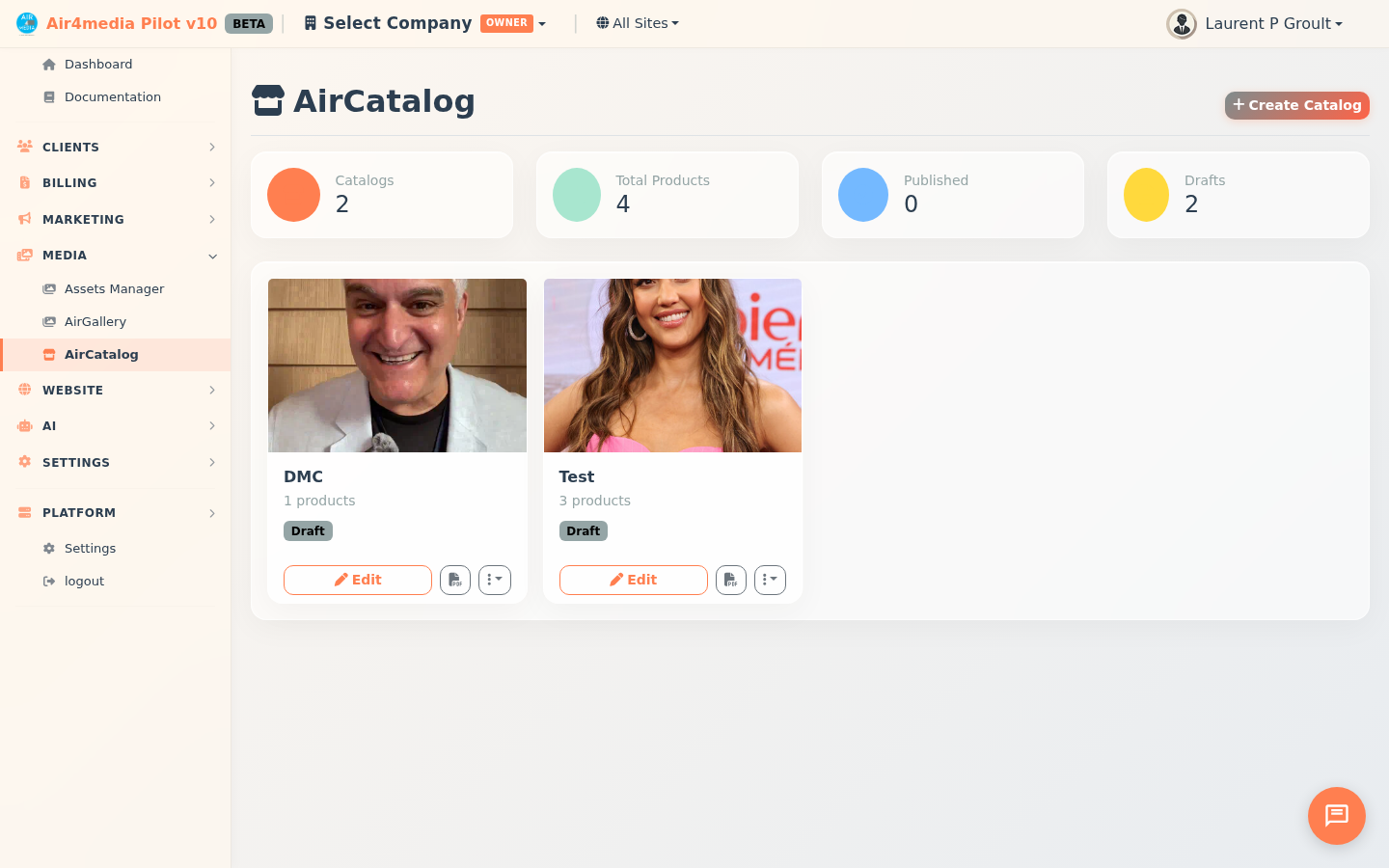
AirCatalog lets you create professional product catalogs with pricing, descriptions, and images. Share them online via a public link or export as a PDF for print and email.
Key Features
- Catalog Management: Create multiple catalogs with Draft or Published status. Duplicate a catalog to quickly spin up a variation, or archive ones you no longer need.
- Product Editor: Each product supports a name, SKU, price, sale price, custom price display text, availability status (Available, Limited, Sold Out, Coming Soon), short and long descriptions, a features list, variants with individual pricing, tags, and a custom call-to-action button.
- Categories: Organize products into categories within each catalog. Visitors can filter the product grid by category, making large catalogs easy to browse.
- Asset Integration: Pick product images from your Assets library, or upload new files directly from the product picker. Filter by type — images, videos, documents, or audio.
- Reordering: Drag and drop products or categories to arrange them in any order.
- AI Descriptions: Generate product descriptions automatically — for all products at once or one at a time (3 credits per product).
- PDF & CSV Export: Download a formatted PDF for printing or sharing, or export all product data as a spreadsheet.
- Sharing & Preview: Generate a public link so clients browse a catalog without logging in. Preview the live catalog from the editor. Revoke access at any time.
- Site Display: Assign a catalog to one of your Airmail sites and control whether visitors see all catalogs or a specific one.
- Display Settings: Choose grid or list layout, number of columns, currency, default CTA label, and toggle visibility of prices, descriptions, variants, and the category filter.
- Design Presets: Apply a visual template to control the overall look and feel.
How to Use
- Go to AirCatalog in the sidebar.
- Click New Catalog, enter a name and optional description, then click Create.
- In the catalog editor, click Add Product to pick an image from your assets or upload a new one.
- Fill in the product details — name, price, availability, description — then click Add.
- Click any product card to edit its full details: features, variants, tags, and a call-to-action link.
- Use the Categories panel on the left to organize products into groups.
- Open the Settings tab to configure currency, layout, columns, and display options.
- When ready, go to Sharing to generate a public link, click Preview to review it live, or click the PDF button to download the catalog.
Tips
- Set a Sale Price to display the original price crossed out alongside the discounted price.
- Use the Price Display field to show custom text (e.g. "Call for pricing") instead of a numeric price.
- Use Duplicate from the catalog card menu to copy an entire catalog — great for seasonal or client-specific versions. ACME Creative Agency, for example, keeps separate catalogs for different service tiers without rebuilding from scratch.
- The AI Descriptions button generates copy for all products at once, saving significant time on large catalogs.
- Assign a catalog to a site from the site dropdown in the editor to make it appear on your public-facing storefront.