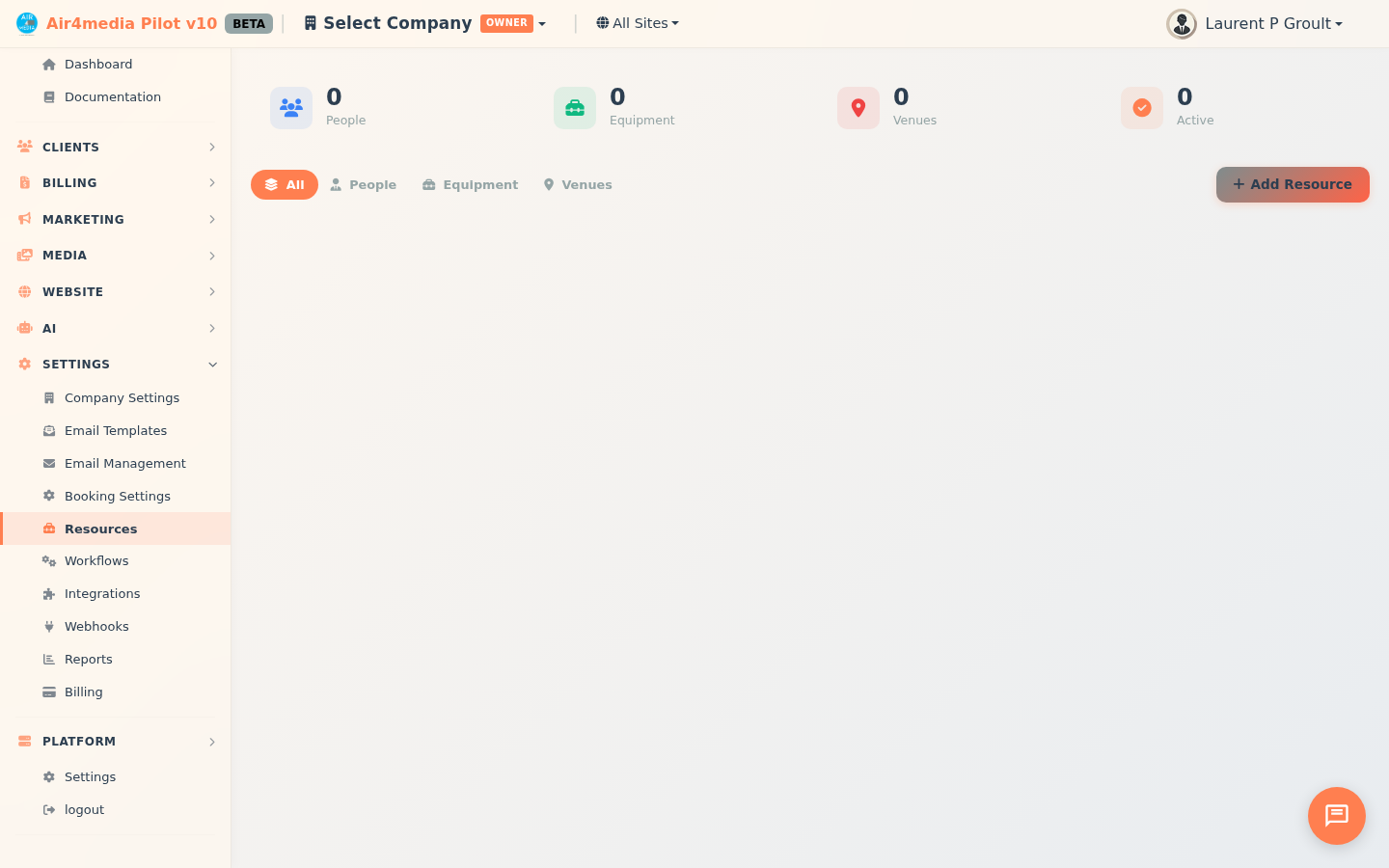
Resources
Manage all the people, equipment, and venues your business relies on — in one place. Resources can be assigned to projects and appointments, with rates and availability tracked throughout. For ACME Creative Agency, this means keeping photographers, video gear, and studio spaces all under one roof.
Key Features
- Resource Types: Organize resources as People (Employee, Subcontractor, Vendor, White Label), Equipment (Equipment, Vehicle), or Venue — each with its own icon and color badge in the list
- At-a-Glance Stats: Four dashboard cards show counts for People, Equipment, Venues, and Active resources at the top of the page
- Quick Filters: Switch between All, People, Equipment, and Venues with one click using the toolbar buttons
- Rate Tracking: Store hourly and day rates per resource in USD, EUR, GBP, or CAD — displayed together in the Rate column (e.g. $75/hr · $500/day)
- Assignment Count: See at a glance how many projects or appointments each resource is linked to
- Calendar Colors: Pick from eight colors per resource for easy identification when scheduling
- Equipment Details: Track serial number, purchase date, condition, and quantity available for gear and vehicles — in a dedicated Equipment tab
- Status Management: Mark resources as Active, Inactive, or On Leave
How to Use
Add a Resource
- Click Add Resource in the top-right corner
- Enter the resource name and select a type (Employee, Subcontractor, Vendor, White Label, Equipment, Vehicle, or Venue)
- Fill in contact details — email, phone, and role or position
- Set the status and optionally link to an Account or Contact from your CRM
- Switch to the Rates tab to enter hourly or day rates and choose a currency
- For Equipment or Vehicle types, the Equipment tab appears — log serial number, purchase date, condition (Excellent, Good, Fair, Needs Repair, or Retired), and quantity available
- Pick a calendar color at the bottom, then click Save Resource
Find a Resource
- Use the search bar to find by name, email, phone, role, notes, or serial number
- Click All / People / Equipment / Venues to narrow by category
- Use the filter dropdowns to refine by exact type, status, or equipment condition
Edit or Delete
- Click Edit on any row to update a resource's details
- Click Delete on a row to remove a single resource
- Check multiple rows and use Delete Selected for bulk removal
Tips
- Link resources to your existing Contacts and Accounts to keep your CRM connected — for example, link a subcontractor to their contact record in ACME's contact list
- The Assignments column shows how often a resource is booked — useful for spotting overloaded team members or equipment
- Use On Leave instead of deleting people who are temporarily unavailable, so their history stays intact
- Use the Retired condition for equipment no longer in service but worth keeping on record
- Assign distinct calendar colors so resources stand out when scheduling projects and appointments