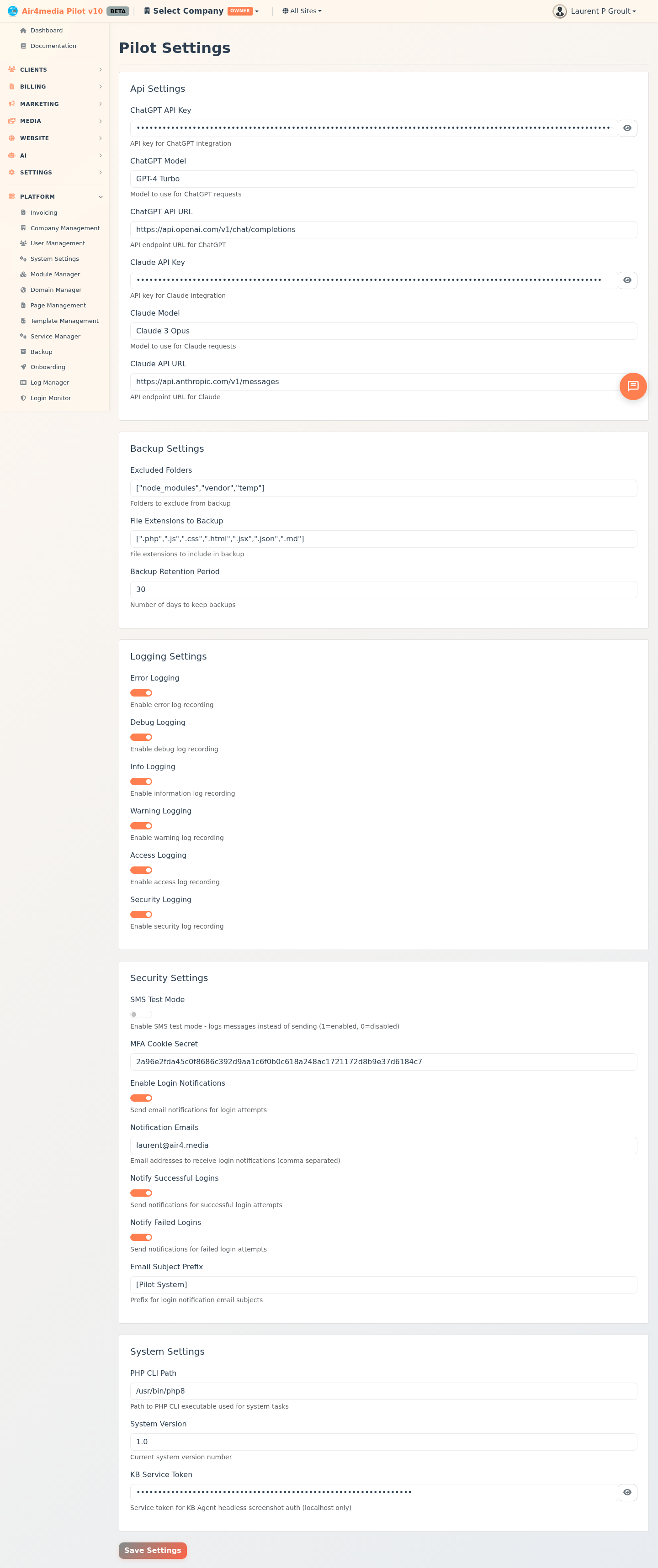
Pilot Settings
Configure system-wide settings for your Pilot account, including AI integrations, API credentials, security options, and general platform preferences. For ACME Creative Agency, this is the central place to connect your AI tools and control how the platform behaves across your workspace.
Key Features
- Organized by Category: Settings are grouped into labeled sections — such as AI, General, and Security — so you can quickly find what you need without scrolling through everything at once.
- AI Provider Setup: Connect Claude, OpenAI, Gemini, or Ollama by entering your API key and selecting which model to use for ACME's AI-powered features.
- Auto-Discover Models: Fetch the latest available models from any AI provider with a single click — no need to look up model names manually.
- Secure Credential Fields: API keys are masked by default. Click the eye icon to reveal a value when you need to verify or update it.
- Toggle Switches: Enable or disable features instantly with simple on/off switches.
- Security Settings: Configure multi-factor authentication and other account security options to keep ACME's workspace protected.
How to Use
- Navigate to Pilot Settings from the sidebar menu.
- Settings appear in sections, each labeled by category (for example, "AI Settings" or "General Settings").
- Update any field:
- Text fields: Type directly into the field.
- Dropdowns: Click to select from the available options.
- Switches: Click the toggle to turn a feature on or off.
- Credential fields: Enter your key; click the eye icon to show or hide the value.
- To connect an AI provider (for example, setting up Claude for ACME's AI features):
- Enter your API key in the key field.
- Click Discover Models next to the model dropdown. The button will spin while it fetches the list.
- Select your preferred model from the updated dropdown.
- When all changes are made, click Save Settings at the bottom of the page.
- A confirmation message appears at the top of the page and dismisses automatically after a few seconds.
Tips
- Enter your API key before clicking Discover Models — you'll see a warning if the key is missing. Ollama is the exception and does not require a key.
- If Discover Models fails, verify that your API key is correct and active in your provider's account dashboard.
- All changes are saved together when you click Save Settings — there is no auto-save, so make all your edits before saving.
- Each category section groups related settings together, making it easy to configure one integration without affecting others.