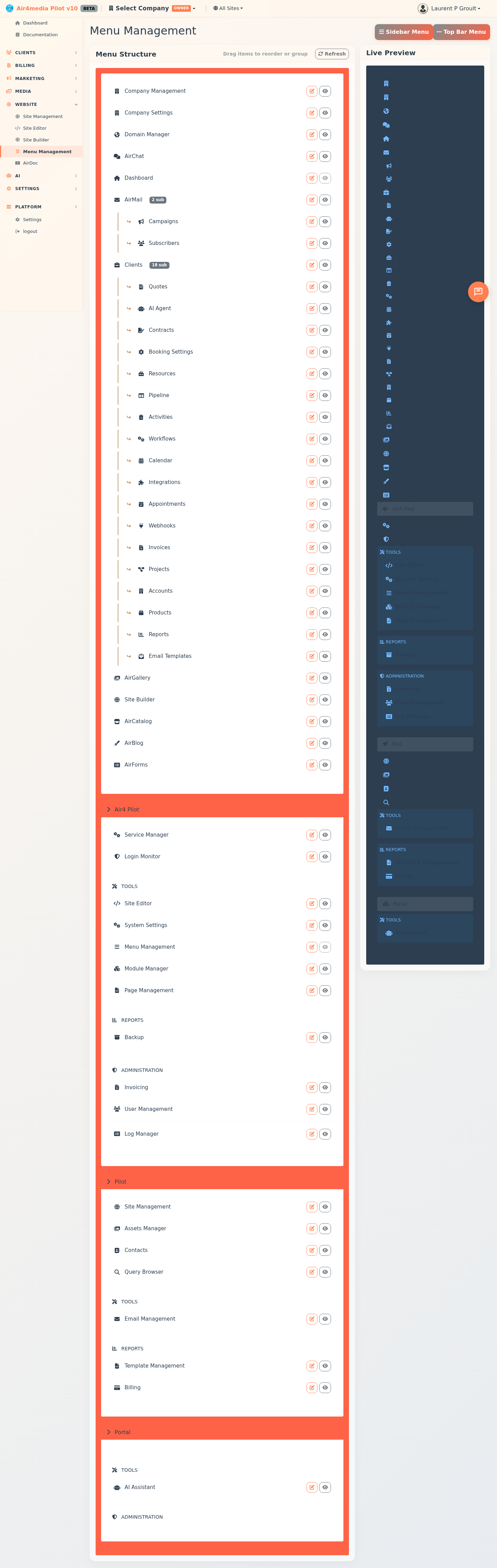
Menu Management
Control which pages appear in the navigation menus across your platform. Reorder items, show or hide pages, nest submenu entries, and organize sections — all changes take effect immediately without any configuration.
Key Features
- Drag-and-Drop Reordering: Grab any menu item and drag it to a new position or into a different feature group — the order saves automatically. Valid drop zones highlight green as you drag; invalid zones dim red
- Sidebar & Top Bar: Switch between the sidebar menu and top bar menu using the buttons at the top of the page
- Show/Hide Items: Toggle any item on or off using the eye icon — hidden items appear faded with a strikethrough in the list
- Edit Item Details: Change a menu item's title, icon, location, platform, feature group, and submenu placement from a clean edit panel
- Submenu Support: Assign a parent item to nest pages as submenu entries — child items appear indented beneath their parent in both the structure list and the live preview
- Live Preview: A real-time sidebar preview on the right updates as you make changes, showing exactly how the menu will look to users
- Platform Sections: Items are organized by platform (Air4 Pilot, Pilot, Portal) in collapsible sections — your expanded/collapsed state is saved between visits
How to Use
Reorder Menu Items
- Open the Menu Management page
- Find the item you want to move in the Menu Structure panel on the left
- Click and drag it to a new position — green highlighting shows valid drop zones
- Release to place it; the order saves automatically
Show or Hide a Menu Item
- Locate the item in the list
- Click the eye icon on the right side of the row
- An open eye means the item is visible; a slashed eye means it is hidden
- The change takes effect immediately
Edit a Menu Item
- Click the pencil icon next to any item
- Update the Title as needed
- Click the icon button to browse and search available icons
- Set the Menu Location — Sidebar, Top Bar, Footer, or None
- Choose a Parent Menu to nest it as a submenu item under another entry
- Adjust the Platform Level and Feature Group to control where it appears in the structure
- Check or uncheck Active and Show Divider After as needed
- Click Save Changes
Switch Between Menus
Click Sidebar Menu or Top Bar Menu at the top of the page to manage each menu separately.
Tips
- Dashboard and Menu Management are protected — they cannot be hidden, moved, or deactivated
- Items with a badge like "2 sub" have submenu children — click the pencil icon to view or change their parent assignment
- Use the Refresh button to reload menu data and discard any unsaved drag-and-drop changes
- Setting Menu Location to None removes an item from all menus without deleting it from the system
- Collapse platform sections by clicking their header to keep the list tidy — the state is remembered for your next visit