Digital Assets
The Digital Assets page is your central hub for your Digital Asset Management (DAM) system — including a fast first-time setup wizard and your day-to-day media library dashboard.
Key Features
- Express Setup: A 2-screen wizard to launch your DAM in about 60 seconds
- Auto-Generated Catalogs: Starter catalogs are created automatically based on your content type
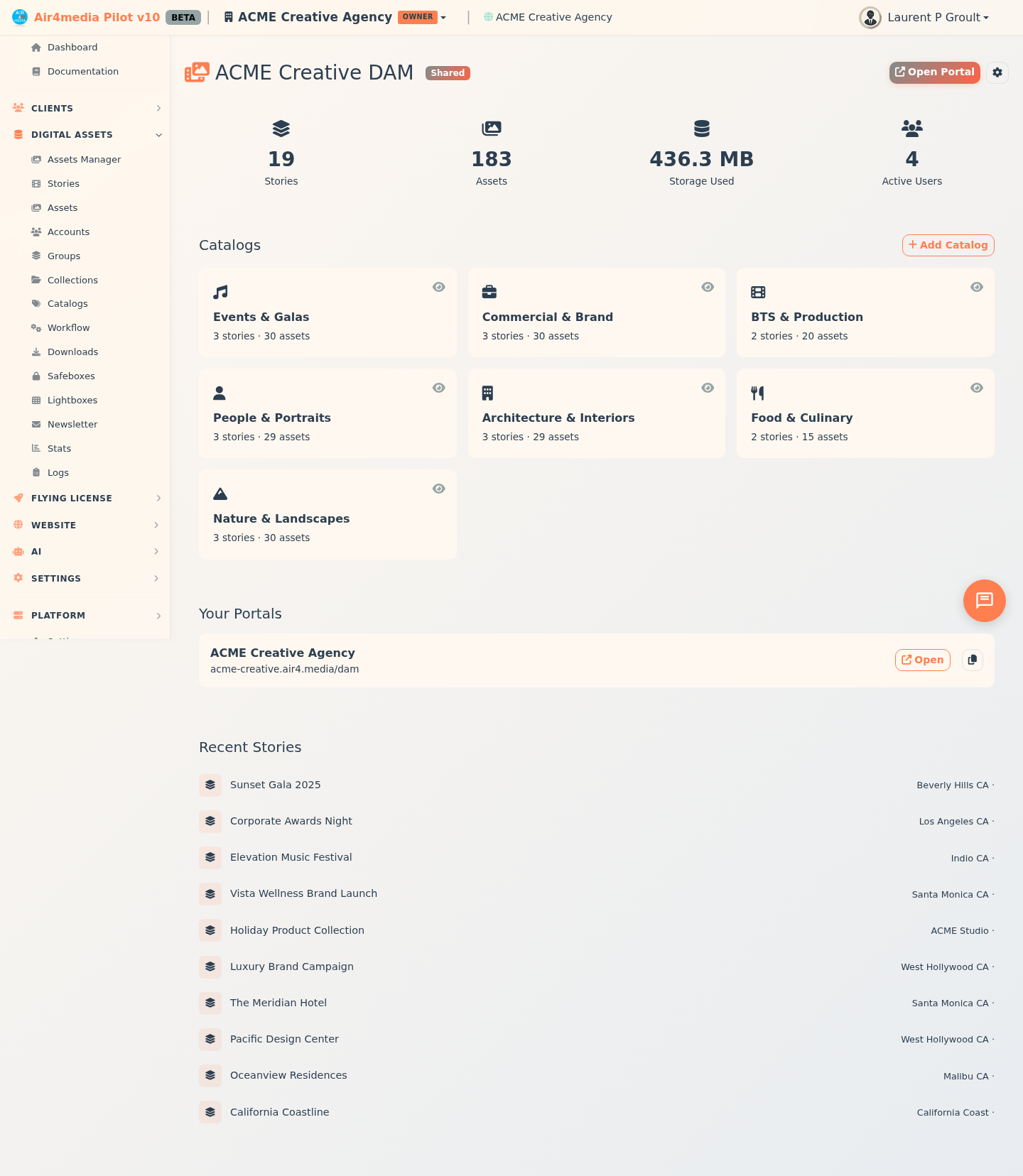
- Dashboard: A live overview of your library — stories, assets, storage, and active users
- Catalog Visibility: Show or hide catalogs from your public portal with one click
- Client Portal: A branded web address where your team and clients browse and download media
- Client Lightboxes: Share curated sets of images with clients — no account needed to view or download
- FotoTrafiX Integration: Upload photos with IPTC metadata directly from the FotoTrafiX desktop app
How to Use
First-Time Setup
If your DAM isn't set up yet, the express wizard launches automatically.
Screen 1 — Tell us about your content:
- Choose your content type — Select Photography, Video, Mixed Media, Events, Entertainment, or Custom. Matching catalogs are pre-created for you. ACME Creative Agency selected Photography and had Editorial, Commercial, and Archive catalogs ready immediately.
- Name your portal — Enter a name (e.g. "ACME Media"). Your portal address previews live below as you type.
Click Next when both fields are filled in.
Screen 2 — Confirm and launch:
Review what will be created: your catalog list, portal address, and 3 user groups (Admin, Editor, Viewer). Your account is set as Admin. Click Launch My DAM to provision everything.
A Getting Started Sheet then appears with your portal URL, login details, catalog list, and 3 quick steps: create a story, upload assets, and share with clients.
Using the Dashboard
Once your DAM is active, four stat cards appear at the top:
- Stories — Total story sets in your library
- Assets — Total individual files uploaded
- Storage Used — Space consumed by your media
- Active Users — Team members with access
Click Open Portal in the top right to visit your live portal.
Managing Catalogs
Each catalog card shows how many stories and assets it contains. Click the eye icon to show or hide a catalog from your portal — hidden catalogs stay in your library but won't appear to clients. Click Add Catalog to create a new one.
Your Portals
The Portals section lists your active portal addresses. Click Open to visit, or the copy icon to grab the link and share it.
Recent Stories
The bottom of the dashboard shows your 10 most recently added stories, with title, location, and date at a glance.
Tips
- Your portal address is generated from your portal name — choose it carefully, as it cannot be changed after launch
- Admins have full access; Editors can upload and edit; Viewers can only browse
- Hidden catalogs are visible to Admins only — keep work-in-progress content private before publishing to clients
- Use client lightboxes to share a curated selection — clients can view and download without needing an account
- Use FotoTrafiX to tag, caption, and batch-upload photos directly into your DAM catalogs from your desktop