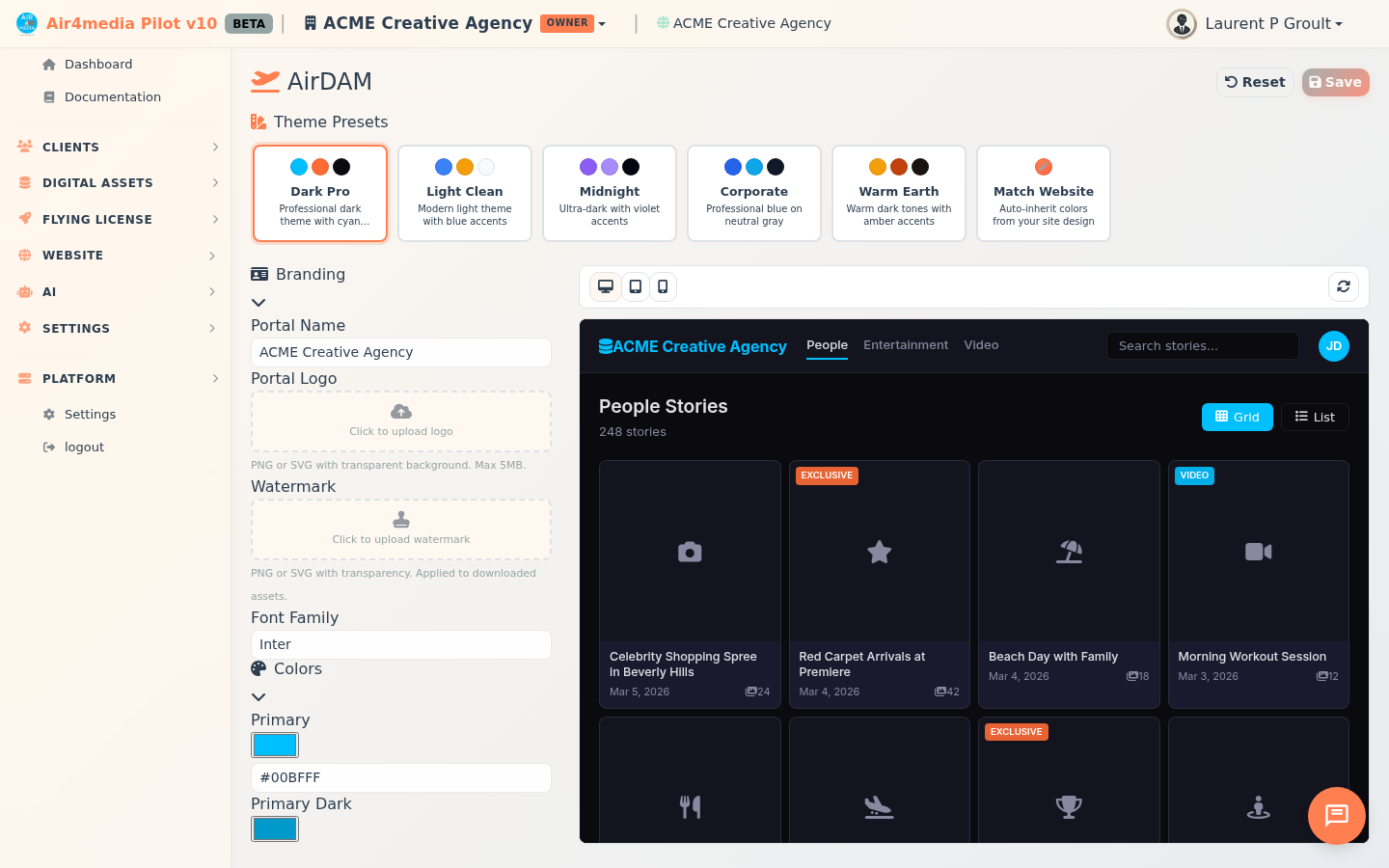
Design
Customize the look and feel of your public DAM portal — colors, branding, typography, and layout — with a live preview that updates as you make changes.
Key Features
- Theme Presets: Choose from 6 ready-made themes: Dark Pro, Light Clean, Midnight, Corporate, Warm Earth, and Match Website. The Match Website preset automatically inherits brand colors from your main site (e.g. acme-creative.air4.media) so your portal feels like a seamless extension of your brand. Your logo, watermark, and portal name are preserved when switching presets.
- Branding: Set your portal name (pre-filled with your company name), upload a logo (shown in the portal header), add a watermark (stamped on downloaded assets), and choose from 8 font families including Inter, Poppins, Montserrat, and more.
- Colors: Fine-tune 11 individual colors — primary, accent, backgrounds, text tones, and status colors — using a color picker or by typing a hex value directly. Changes appear in the preview instantly.
- Layout: Adjust card corner rounding (0–20 px), grid spacing (4–16 px), and border opacity using simple sliders.
- Custom CSS: Add CSS overrides in the Advanced section for styling beyond the built-in controls.
- Live Preview: See changes instantly in a split-screen preview. Toggle between desktop, tablet (768 px), and mobile (375 px) views without leaving the page.
How to Use
- Select your DAM site from the topbar — the editor loads that site's current design. If no site is selected, you'll see a prompt to choose one first.
- Click a Theme Preset card to apply a starting point. Each card shows a preview of its primary, accent, and background colors. The active preset is highlighted with a colored border.
- Expand Branding to confirm or update the portal name, upload a logo, add a watermark, and select a font family.
- Expand Colors to adjust any of the 11 color values. Click a swatch to open the color picker, or type a hex code directly into the field.
- Expand Layout to slide card radius, grid gap, and border opacity to your preference.
- For advanced needs, expand Advanced and enter custom CSS in the text area.
- Watch the live preview update in real time. Use the desktop / tablet / mobile buttons to check each screen size. Click the refresh icon if the preview appears out of sync.
- Click Save to apply your changes. Click Reset to revert to the selected preset's defaults (you'll be asked to confirm). Both buttons are grayed out until you make a change.
Tips
- Use a PNG or SVG with a transparent background for the best logo and watermark results (max 5 MB, supports PNG, SVG, JPEG, GIF, and WebP).
- The watermark is stamped on assets when clients download them — keep it subtle and semi-transparent for a professional result.
- Match Website is a great starting point for ACME Creative Agency — it pulls colors directly from acme-creative.air4.media so the portal feels like a natural extension of your brand.
- If you upload a logo and then switch presets, your logo stays in place — presets only change colors and layout.
- Uploaded logos and watermarks are saved to your Assets Manager automatically, so you can reuse them across the platform.
- The Save button activates only when you have unsaved changes — if it's grayed out, you're already up to date.