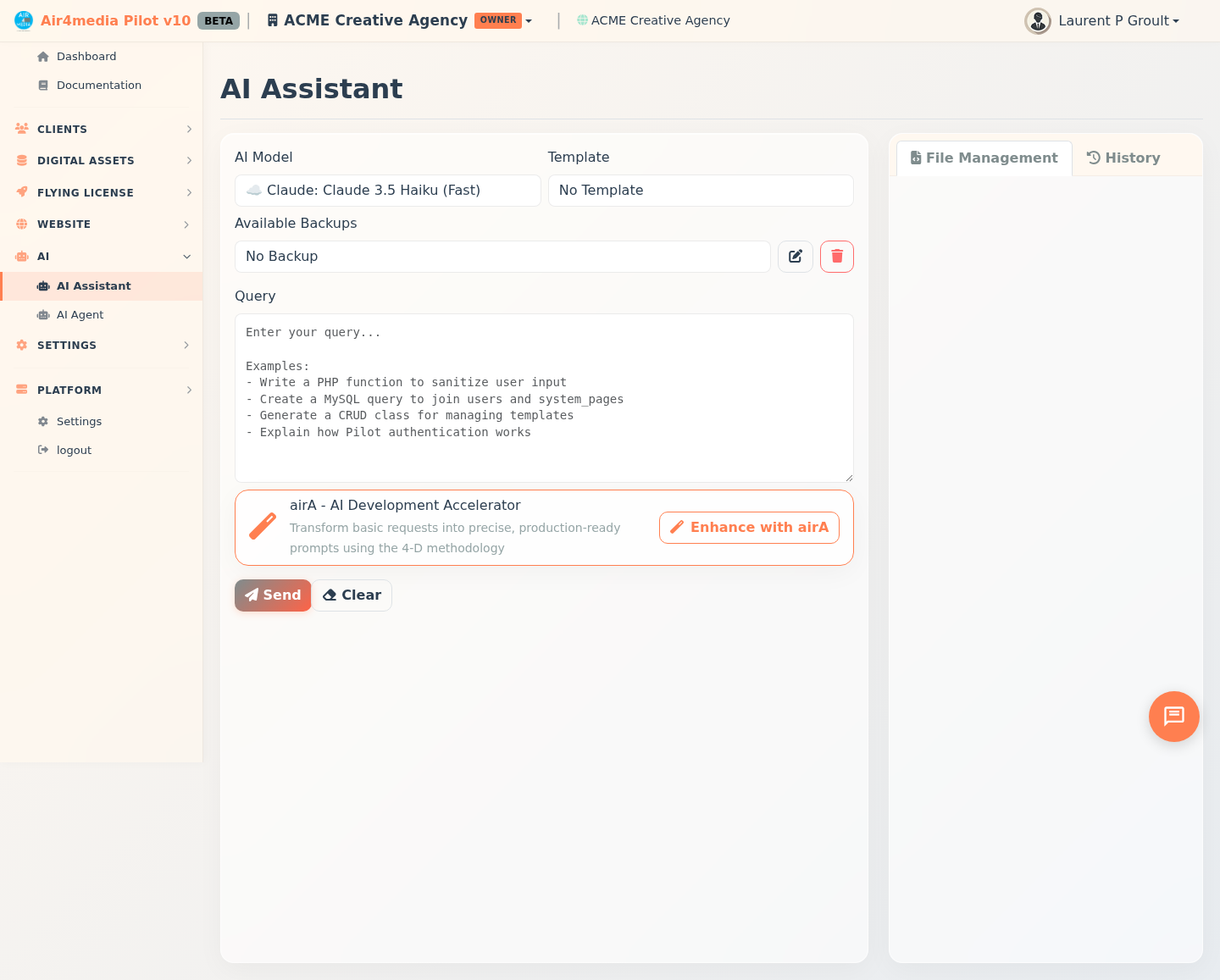
AI Assistant
The AI Assistant gives ACME Creative Agency's team direct access to leading AI models — Claude, ChatGPT, and a private local model — without leaving the platform. Ask questions, draft content, and get expert help all in one place.
Key Features
- Multiple AI Models: Choose from cloud models (Claude Sonnet, GPT-4o, and others) or a private local DeepSeek model that processes everything on-server. The model picker sits at the top of every session.
- Prompt Templates: Save and reuse prompt structures for recurring tasks. Select a template and your query is pre-filled automatically — great for consistent content requests or analysis tasks.
- Backup Context: Attach a saved file to give the AI background before it answers. Select from the Backup dropdown and its content is included automatically — useful for project briefs, past proposals, or reference material.
- airA Prompt Enhancer: Click Enhance with airA to transform a rough question into a precise, structured prompt using the 4-D methodology. Review and edit the enhanced version before sending.
- File Management: When the AI responds with code or structured files, the File Management tab on the right detects them automatically. Preview any file in full, then save it to your account with one click.
- Query History: The History tab shows recent conversations with timestamps and model badges. Click View Details on any entry to reload the full exchange — including every file extracted during that session.
How to Use
- Open AI Assistant from the sidebar.
- Choose an AI Model from the dropdown — Claude Sonnet for writing tasks, GPT-4o for broad knowledge, or the local model for sensitive internal content.
- Optionally select a Template to pre-structure your prompt, or a Backup file to give the AI extra context.
- Type your request in the Query box — for example, "Draft a follow-up email for a client whose proposal has been pending two weeks."
- Click Enhance with airA to refine the prompt, or go straight to Send.
- The AI response appears in the conversation panel. Any files or code blocks in the response are automatically listed in the File Management tab on the right.
- Click a file entry to preview it in full, then click Save File to keep it in your account.
Tips
- Use Templates to standardise how ACME's team phrases recurring requests — for example, a template for project scoping, tone reviews, or client email drafts.
- The local model (marked 🏠) processes queries entirely on-server — a good choice for internal content you'd prefer not to send to a cloud service.
- Keep the Backup list tidy: use the pencil icon to rename a file or the trash icon to remove it.
- In the History tab, click View Details on any past query to reload the full conversation and see all files that were extracted at the time.