System Settings
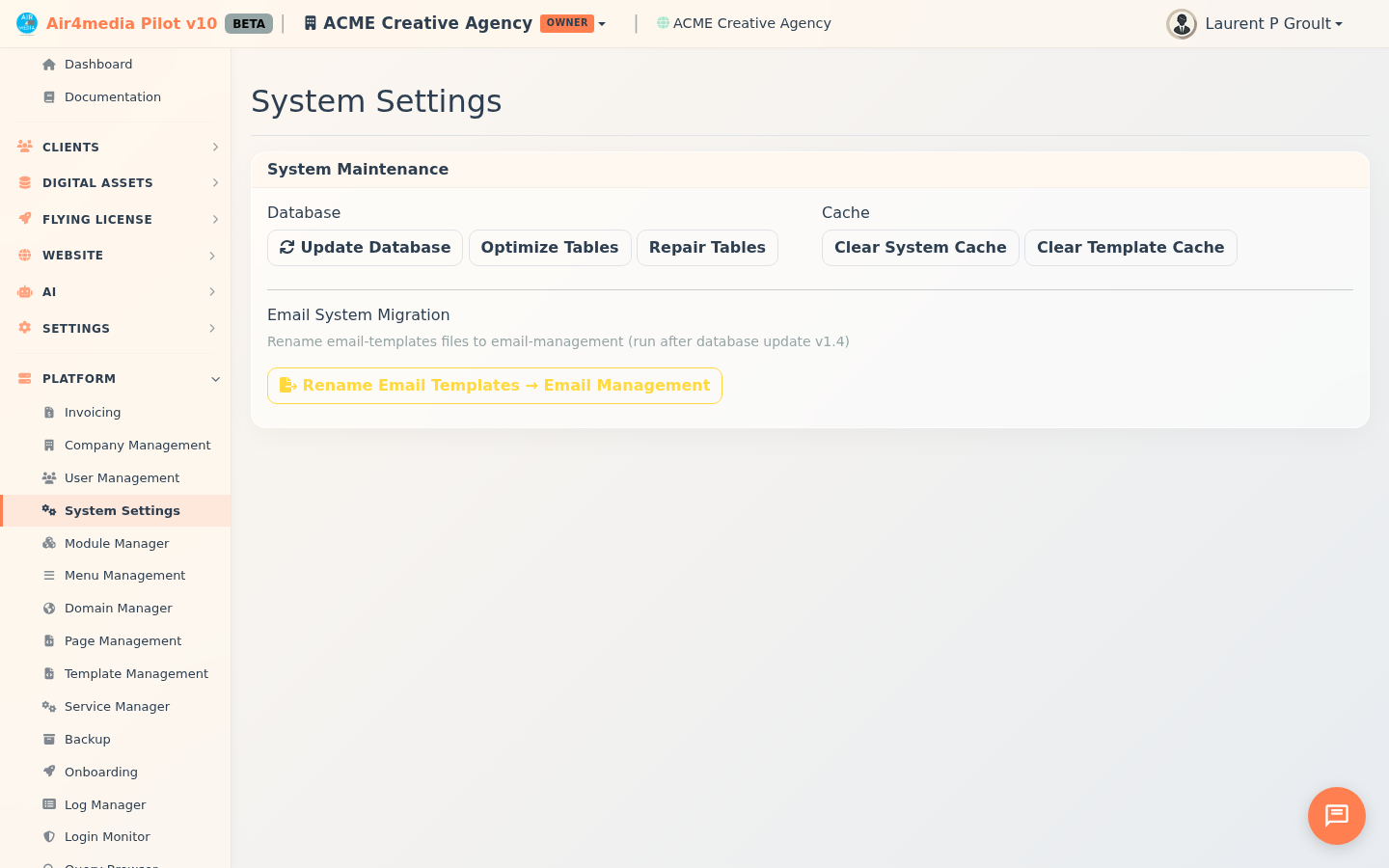
System Settings is the platform maintenance hub for administrators. From here you can apply database updates and run one-time system migrations — all without any technical know-how required.
Key Features
- Update Database: Applies any pending platform updates in one click. If updates are available, a results panel pops up listing each item colour-coded green (success), yellow (skipped), or red (error). If everything is already current, a brief confirmation banner appears instead.
- Optimize Tables: Reclaims unused space and tidies database tables to keep things running smoothly.
- Repair Tables: Checks and fixes any corrupted table data.
- Clear System Cache: Wipes the platform's internal cache so fresh data is loaded on the next request.
- Clear Template Cache: Clears any cached page templates, useful after layout or branding changes.
- Email System Migration: A one-time utility to migrate legacy email template files to the current email management system. A confirmation prompt appears before anything runs.
How to Use
Running a database update
- Go to System Settings from the admin sidebar.
- Under System Maintenance → Database, click Update Database.
- The button shows a spinning indicator while the update runs.
- When complete, one of two things happens:
- If updates were applied, an Operation Results popup lists each item with its status — green for success, yellow for already up to date (skipped), red for error.
- If the system was already current, a brief green banner appears at the top of the page and auto-dismisses after a few seconds.
- Click Close to dismiss the results popup.
Running the email migration (one-time)
- Under Email System Migration, click Rename Email Templates → Email Management.
- A confirmation prompt asks you to verify before proceeding — click Confirm.
- A results popup shows which files were renamed, skipped, or encountered an error.
Tips
- Run Update Database first whenever you notice new features aren't behaving as expected — a pending update is often the cause.
- Already-applied updates show as "skipped" in the results, so re-running is safe and won't undo anything.
- The email migration only needs to run once. If all items show "skipped", the migration is already complete.
- Success and error banners dismiss automatically after a few seconds — no need to manually close them.