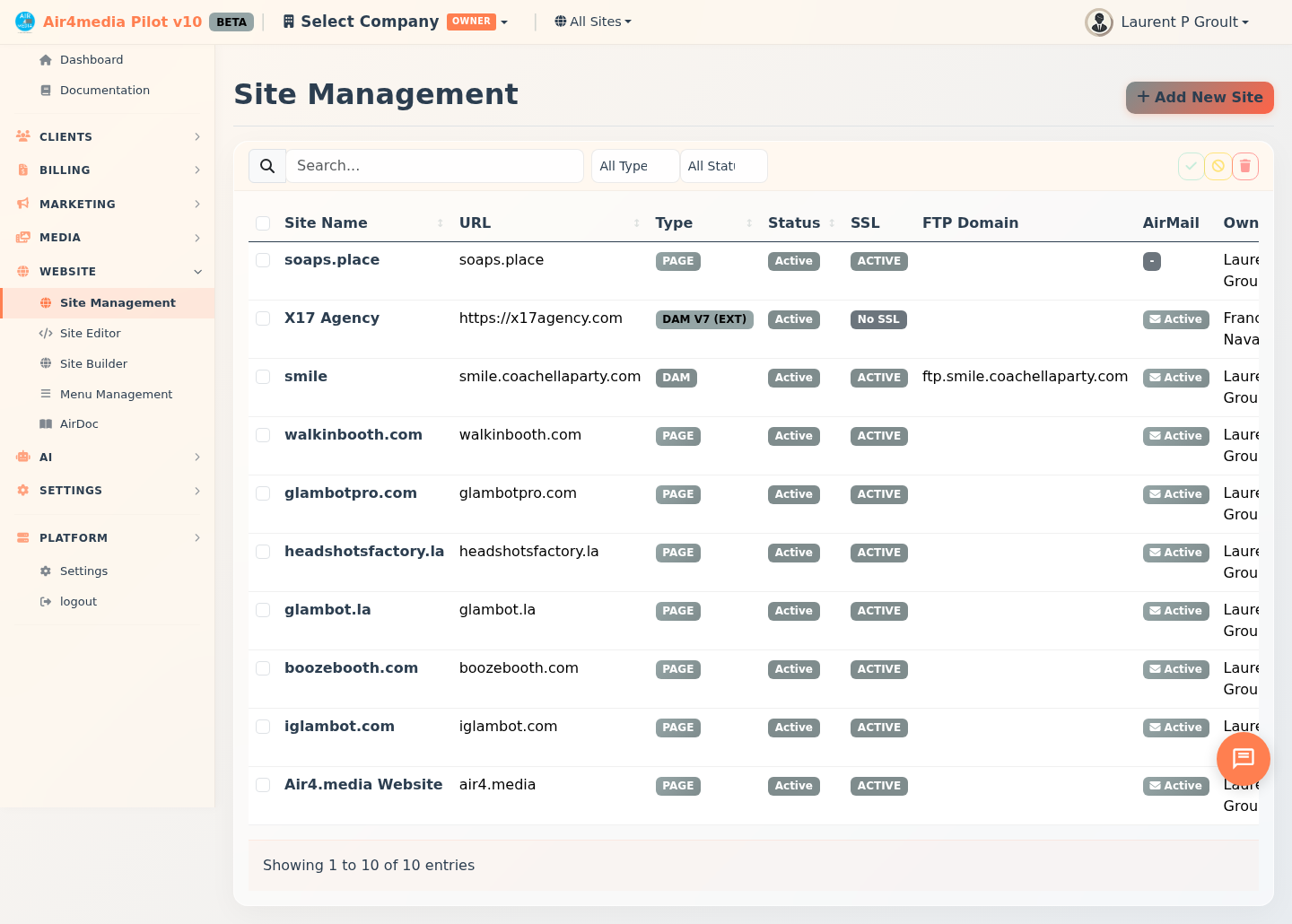
Site Management
View and manage all sites on your platform — including web pages, digital asset libraries, and externally hosted DAM sites. For ACME Creative Agency, this is where you oversee every client-facing site from a single dashboard.
Key Features
- Site List: See all your sites at a glance — URL, type, status, SSL state, FTP domain, AirMail status, owner, storage usage, and creation date
- Search & Filter: Find sites by name or URL, and narrow down by type (Page, DAM, External DAM) or status (Active, Suspended, Pending)
- Add New Site: Create a site by providing a name, URL, type, and assigning an owner
- Edit Site Details: Update a site's name, URL, type, status, and owner at any time
- DNS Verification: Confirm your domain is correctly pointed to the server before enabling SSL
- SSL Certificates: Provision, renew, or remove SSL certificates once DNS is verified — with an auto-renew option to keep things current
- DAM Configuration: Connect a Digital Asset Management site to its FTP domain and database
- Toggle Status: Switch any site between Active and Suspended with one click
- Batch Actions: Select multiple sites to activate, suspend, or delete them all at once
- Site Editor: Jump directly into the visual editor for any active, non-external site
How to Use
Add a New Site
- Click Add New Site in the top-right corner
- Enter the site name, URL (domain only, e.g.
acme-creative.com), type, and owner - Set the initial status and click Save Changes
Set Up DNS & SSL
- Open a site and go to the General tab
- Under DNS & SSL, add an A record at your domain registrar pointing to the server IP shown
- Click Check DNS to confirm the domain is correctly pointed
- Once verified, click Provision Certificate to activate HTTPS
- Enable Auto-renew to keep the certificate current — or use Renew Now to force immediate renewal
- Use Remove SSL to revoke the certificate if needed
Configure a DAM Site
- Open a DAM site and click the DAM tab
- Enter the FTP domain, select the linked database, and enter the user table name
- Click Test Table to verify the connection
- Optionally enable SSL for FTP access
Manage Status & Delete
- Click Toggle Status on any site row to switch between Active and Suspended
- A site must be Suspended before it can be deleted
Batch Operations
- Check the boxes next to the sites you want to manage
- Use the batch toolbar to Activate, Suspend, or Delete all selected sites at once
Tips
- Sites of type DAM V7 (External) are tracked for reference only — use Open External to visit them directly
- The Site Editor button only appears for active, non-external sites
- DNS propagation can take up to 48 hours — if Check DNS fails, wait and try again
- Storage usage is shown per site in the list, making it easy to spot heavy consumers
- Module configuration for DAM sites is managed separately in Site Builder → Modules