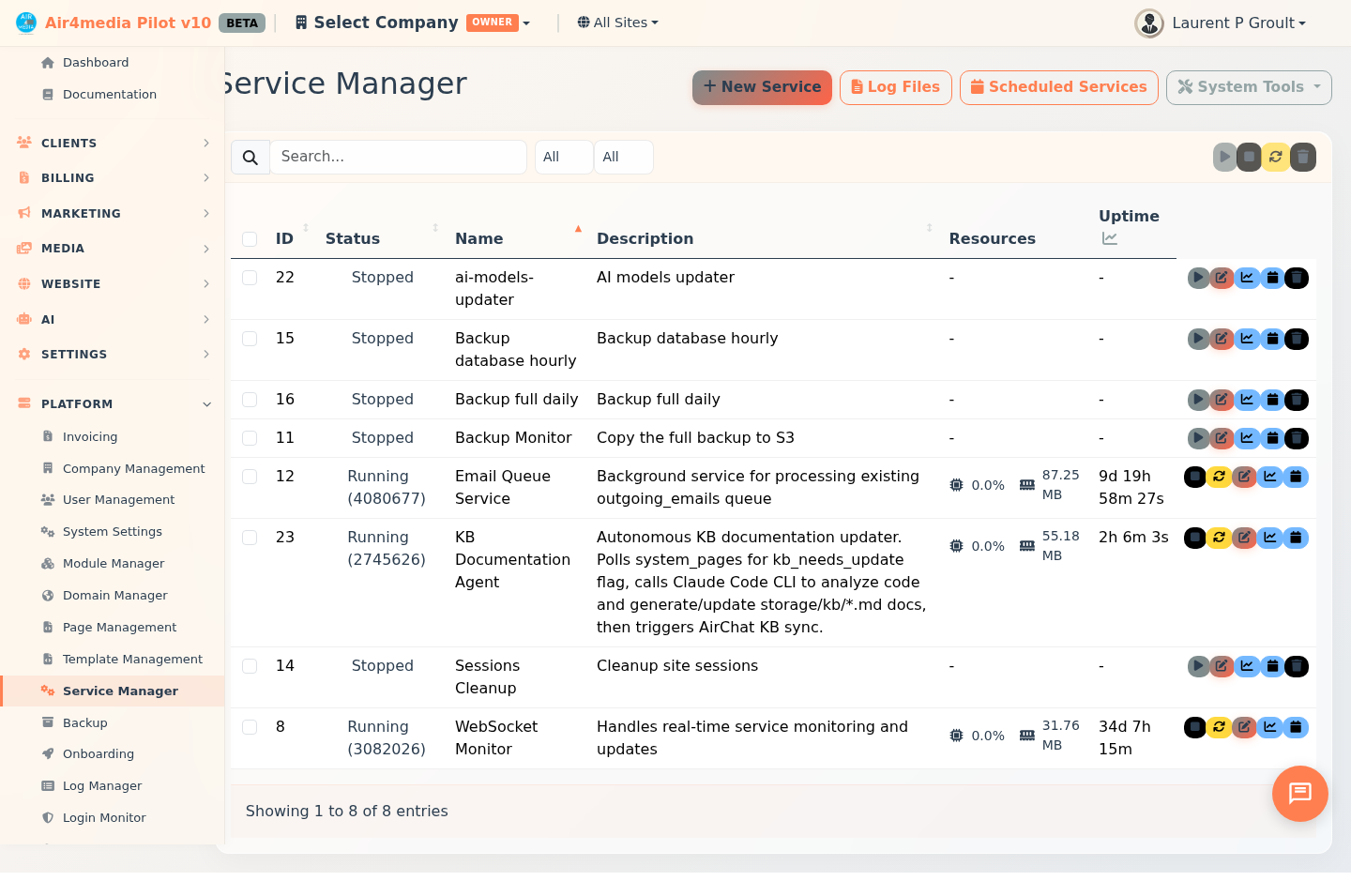
Service Manager
Control and monitor all background processes running on your Air4.media platform. Start, stop, schedule, and watch services in real time from a single screen.
Key Features
- Service List: Every service is listed with its live status (Running, Stopped, Error), current CPU and memory usage, and uptime at a glance.
- Start / Stop / Restart: Control any service with one click. Buttons appear contextually — Stop and Restart only show for running services, Start only for stopped ones.
- Batch Actions: Select multiple services and start, stop, restart, or delete them all at once. A progress bar tracks the operation.
- Real-Time Monitoring: Open the Monitor panel for any service to see live CPU, memory, thread count, I/O activity, and a live log stream with auto-scroll.
- Built-In Script Editor: Each service can run a script. Write a new one or load an existing file directly in the built-in code editor.
- Cron Scheduling: Automate any service with a schedule. Choose from presets (Hourly, Daily, Weekly, etc.) or enter a custom expression. A plain-English preview shows exactly when the service will run.
- Auto-Start on Boot: Mark a service to start automatically whenever the server restarts.
- Auto-Stop Timer: Set a time limit (in minutes) after which a service stops itself. Set to 0 to run indefinitely.
- Log Files: Browse, view, clear, or delete log files for all services from the Log Files panel.
- Crash Detection: The system checks for crashed services every minute and can alert or restart them automatically.
How to Use
Create a Service
- Click New Service in the top-right area.
- Enter a name and description on the Details tab.
- Optionally check Auto-start on system boot and set an Auto-stop timer.
- Switch to the Script tab to write a new script or load an existing one.
- Click Save Service.
Start, Stop, or Restart a Service
- Find the service in the list.
- Click Start, Stop, or Restart in its row.
Monitor a Service in Real Time
- Click Monitor on any service row.
- A panel opens with live status, resource usage, and a scrolling log output.
Schedule a Service
- Click Schedule in the service row (or open the service and go to the Schedule tab).
- Pick a preset (e.g., Daily) or fill in the custom cron fields.
- The preview shows a plain-English explanation and the next run time.
- Click Save Configuration.
View and Manage All Schedules
- Click Scheduled Services in the toolbar to see every cron job across all services, with options to activate or edit each one.
Manage Log Files
- Click Log Files in the toolbar to browse all service logs. View, clear, or delete individual files.
System Tools
Click the System Tools menu for platform-level diagnostics:
- Check WebSocket Status — Verify the real-time connection service is running and see connected clients.
- Restart WebSocket Service — Restart the live-update connection if needed.
- Verify Crontab Entries — Confirm all scheduled services are correctly registered.
- Verify Boot Services — Check which services are set to auto-start on boot.
- Test Server Permissions — Run a permissions check to catch configuration issues early.
Tips
- Use the Status and Auto Start filters at the top of the list to quickly narrow down services.
- Search by name or description to find a specific service instantly.
- The Monitor panel updates live — leave it open to watch a service during a critical operation.
- Always save a service before configuring its schedule; the Schedule tab requires a saved service ID.
- Set Auto-stop to a few minutes for short-lived tasks so they don't run indefinitely if something goes wrong.