Log Manager
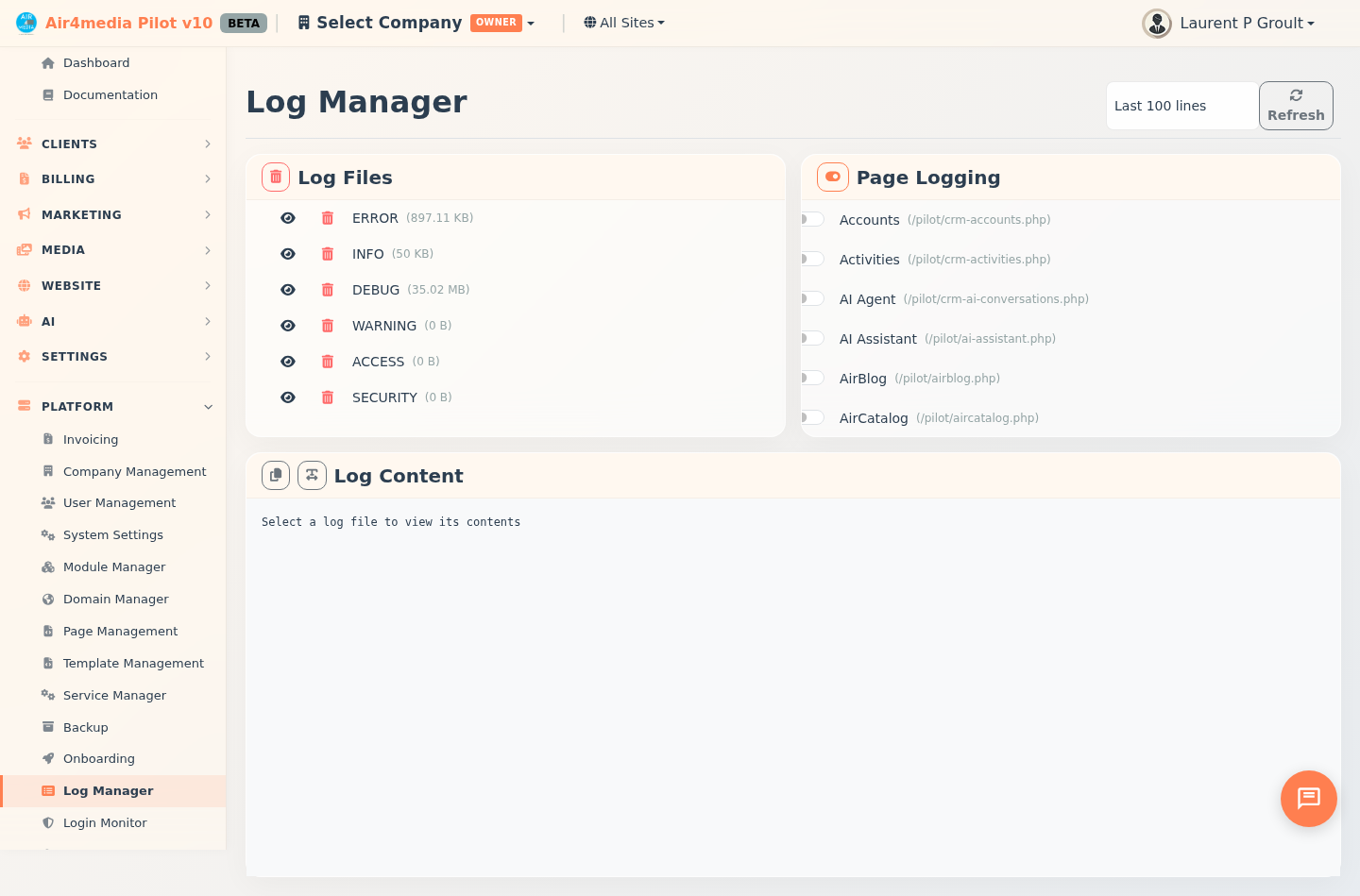
View and manage system activity logs across the platform. Monitor errors, security events, and page activity from one central location. This page is available to platform administrators only.
Key Features
- Six Log Types: Tracks Error, Info, Debug, Warning, Access, and Security events in separate color-coded files — red for errors, yellow for warnings, purple for access, teal for security
- Live Log Viewer: Click the eye icon next to any log type to load its entries into the viewer below
- Adjustable View: Choose to display the last 50, 100, 200, or 500 log lines using the dropdown at the top
- Clear Logs: Erase a single log file or clear all logs at once — both actions require confirmation before anything is deleted
- Copy & Select: Copy log content to clipboard or select all text for manual export
- Page Logging Control: Enable or disable activity logging for each page individually using the toggle switches in the Page Logging panel
- Smart Toggle All: The toggle button in the Page Logging header switches all pages on or off at once — if any pages are currently logging, it disables all; if none are active, it enables all
How to Use
Viewing a Log
- Open Log Manager from the sidebar
- The Log Files panel lists all six log types with their current file sizes
- Click the eye icon next to any log type to load its entries into the Log Content viewer below
- Use the Last N lines dropdown at the top to control how many entries are shown (default: 100)
- Click Refresh to reload the latest data at any time
Copying Log Content
- Load a log into the viewer by clicking its eye icon
- Click the Copy button (clipboard icon) to copy all visible content to your clipboard
- Or click the Select button (text icon) to highlight all the text, then copy manually
Clearing Logs
- To clear a single log: click the trash icon next to the log type in the Log Files panel and confirm the prompt
- To clear all logs at once: click the trash button in the Log Files panel header and confirm
Controlling Page Logging
- The Page Logging panel lists every active page in the platform
- Flip the toggle next to any page to enable or disable logging for that page
- Use the toggle button in the Page Logging header to switch all pages on or off at once
Tips
- Check the Error log first when troubleshooting unexpected behavior
- The Security log records login attempts and access events — review it regularly
- File sizes appear next to each log name — a large file may indicate high activity or a recurring issue
- Clearing logs is permanent and cannot be undone — copy important entries before clearing