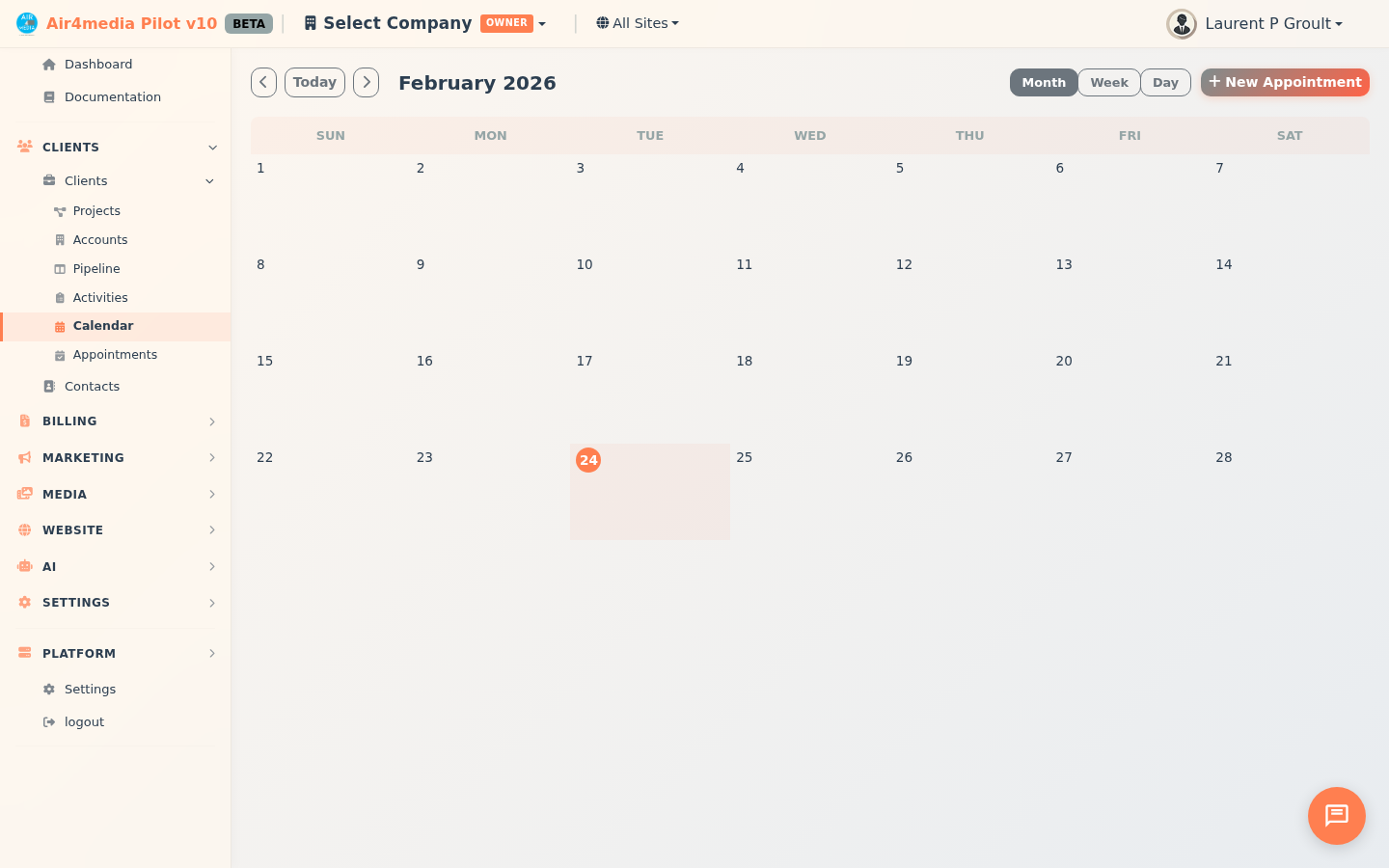
Calendar
Schedule and manage appointments with your clients, contacts, and projects — all in one place.
Key Features
- Three Calendar Views: Switch between Month, Week, and Day views to see your schedule at a glance or in detail.
- Appointment Types: Categorize appointments as Consultations, Site Visits, Meetings, Calls, Demos, Follow-ups, or Custom events.
- Status Tracking: Mark appointments as Scheduled, Confirmed, Completed, Cancelled, or No Show.
- All Day Events: Check "All Day Event" to create a full-day appointment without a specific time.
- CRM Links: Connect each appointment to an Account, Contact, and/or Project for full context.
- Location Options: Choose In Person (with address), Phone, Video Call, Google Meet, or Zoom. Selecting any virtual option reveals a meeting link field. Google Meet and Zoom can generate that link automatically when those integrations are connected.
- Google Calendar Sync: Appointments sync two-ways with Google Calendar — changes in either place stay in sync.
- Color Labels: Assign one of 8 colors to any appointment for quick visual identification on the calendar.
- Reminders: Set a reminder 15 minutes, 30 minutes, 1 hour, or 1 day before the appointment.
- Project Timelines: Active project date ranges appear as color-coded spanning bars across calendar weeks. Click any bar to jump directly to that project.
- Project Events: Project milestones appear as distinct items on the calendar, color-coded separately. Clicking them opens the related project.
- Online Booking: Share a public booking link so clients can self-schedule based on your availability rules.
How to Use
Viewing Your Calendar
- Open the Calendar page from the sidebar.
- Use the Month / Week / Day buttons to switch views.
- Click the arrow buttons to move forward or backward in time, or click Today to return to the current date.
- In Month view, click +X more on any day to switch to Day view and see all events for that date.
Creating an Appointment
- Click New Appointment — or click a day cell (Month view) or a time slot (Week/Day view) to pre-fill the date and time.
- Fill in the title, type, status, and start/end times. Check All Day Event if no specific time is needed.
- Optionally add a description and internal notes.
- Link the appointment to an Account, Contact, or Project.
- Choose a location type. Selecting Video Call, Google Meet, or Zoom reveals a meeting link field. If Google Calendar or Zoom is connected, the meeting link is generated automatically on save.
- Pick a color and set a reminder if desired.
- Click Save Appointment.
Editing an Appointment
Click any appointment on the calendar to open it, update the details, and click Save Appointment.
Online Booking
Share your public booking link with clients so they can self-schedule. Availability rules — working hours, appointment duration, and buffer time between bookings — control when clients can book.
Tips
- Use Week or Day view to see exact appointment times side by side. Both views automatically scroll to 8 AM so your working hours are front and center.
- Project timeline bars span across days automatically — click one to jump straight to that project.
- Project milestones appear as distinct calendar items and also link back to their project.
- Linking appointments to Accounts and Contacts keeps your CRM activity log up to date.
- Click any empty time slot in Week or Day view to open a new appointment already set to that time.
- Connect Google Calendar in Integrations settings to keep your schedule synced across both platforms.