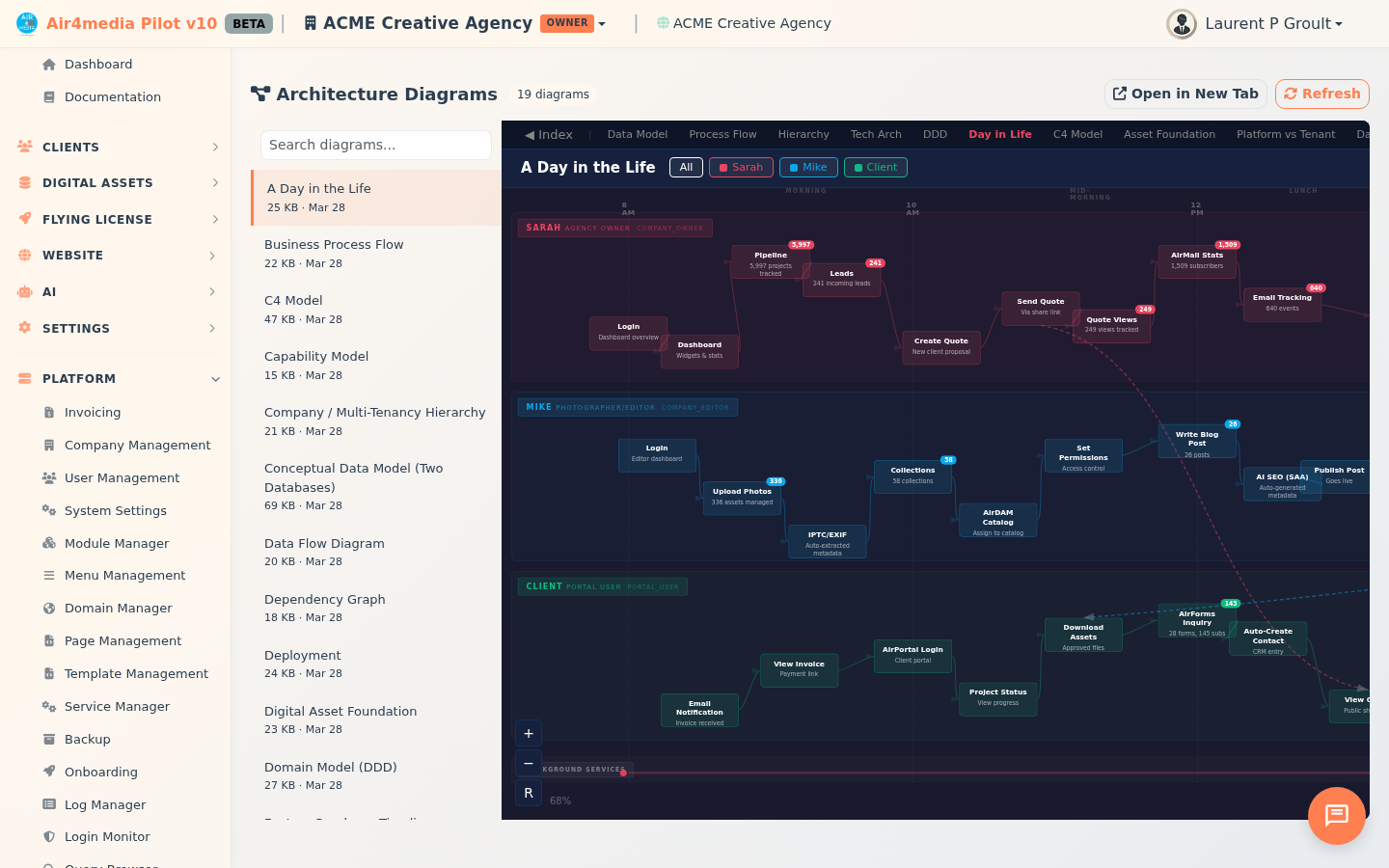
Architecture Diagrams
The Architecture Diagrams page gives you a live, browsable view of 19 interactive diagrams that document how the Air4.media platform is built — covering data models, system integrations, deployment structure, workflows, and more. It's a single place to explore and understand the platform's technical blueprint without leaving your browser.
Key Features
- Diagram browser: A scrollable sidebar lists all 19 diagrams alphabetically, showing the name, file size, and last-modified date for each one.
- Instant preview: Click any diagram in the sidebar to load it immediately in the large viewer panel on the right — no page reload needed.
- Search filter: Type in the search box at the top of the sidebar to narrow the list by name. Useful when you know what you're looking for (e.g. type "sequence" to find all sequence diagrams).
- Keyboard navigation: Use the ↑ and ↓ arrow keys to move between diagrams in the sidebar without touching the mouse.
- Open in new tab: Click Open in New Tab to launch the current diagram full-screen in a separate browser tab — ideal for a closer look or sharing a link.
- Refresh: Click Refresh to reload the current diagram, useful if the content has been recently updated.
Diagram Categories
The 19 diagrams cover six areas of the platform:
- Data Model — how records (contacts, invoices, assets, sites, users) relate to each other
- Domain-Driven Design (DDD) — bounded contexts and domain boundaries
- Deployment — infrastructure, servers, and service topology
- Sequences — step-by-step flows for key operations (e.g. sending an email, processing a payment)
- State Machines — how objects like invoices and emails move through statuses
- Integrations — connections to external services such as Stripe and AWS
How to Use
- Open Architecture Diagrams from the sidebar menu.
- Browse the list on the left — you'll see all available diagrams with their names and update dates.
- Use the search box to filter by keyword if needed.
- Click a diagram title to load it in the viewer.
- Interact with the diagram directly in the viewer — most diagrams support zooming and panning.
- To view a diagram at full size, click Open in New Tab in the top-right corner.
Tips
- Use arrow keys to quickly cycle through diagrams without moving your cursor away from the viewer.
- The Open in New Tab button is handy when comparing two diagrams side by side — open one in a tab, then select another in the main view.
- The last-modified date next to each diagram title tells you when it was last updated.