AirReview
Collect, moderate, and showcase customer reviews and testimonials — all in one place.
Key Features
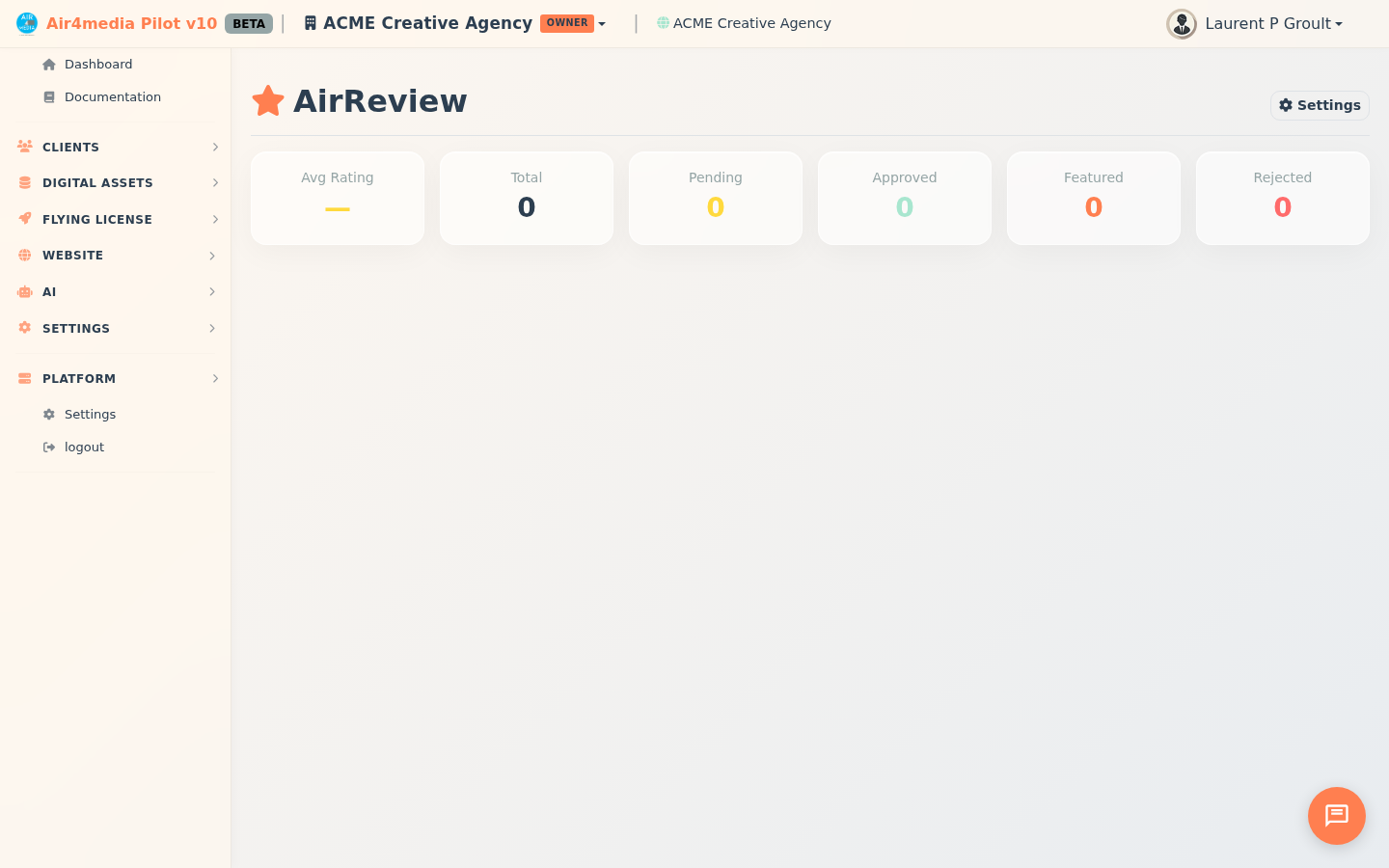
- Review Dashboard: Six stat cards show your average rating plus live counts for total, pending, approved, featured, and rejected reviews at a glance.
- Review List: Each row shows the reviewer name, star rating, a preview of their comment, the submission source (direct link, QR code, email campaign, or embed), and current status.
- Google Column: A Google icon appears next to any reviewer who clicked through to post on your Google Business profile — so you can see who followed through.
- Review Detail: Open any review to read the full comment, see reviewer name, email, display name, source, submission date, and Google click status.
- Moderation: Approve, reject, feature, or delete reviews individually from the detail panel — or select multiple reviews and act in bulk.
- Google Reviews Integration: After a customer submits a review, prompt them to also post it on your Google Business profile to boost your public reputation.
- Auto-Approve: Automatically approve reviews that meet a minimum star rating, so high ratings go live instantly without manual intervention.
- Email Notifications: Get notified by email every time a new review is submitted.
- Review Page Branding: Customize the title, intro text, and thank-you message shown to customers on your public review submission page.
How to Use
Moderating Reviews
- Open AirReview from the sidebar.
- The stats row shows your average rating and review counts by status — for example, ACME Creative Agency might see a 4.7 average with 3 reviews pending.
- Each list row shows the reviewer name, star rating, a comment snippet, the submission source, and current status.
- Click View on any row to open the full review detail.
- From the detail panel, click Approve, Feature, Reject, or Delete.
Bulk Actions
- Check the boxes next to multiple reviews.
- Use the batch action menu to Approve, Reject, or Delete all selected reviews at once.
Configuring Settings
- Click the Settings button in the top-right corner.
- Google Reviews — Enter your Google Place ID and business name. Enable the "Post on Google" prompt to invite customers to also leave a public Google review after they submit.
- Moderation — Turn on auto-approve and set the minimum star rating required (e.g., 4+ stars go live automatically).
- Notifications — Enable email alerts and enter the address where new review notifications should be sent.
- Review Page Branding — Set the page title, intro text, and the thank-you message customers see after submitting.
- Click Save Settings.
Tips
- Use Featured status to highlight your best reviews — featured reviews can be displayed prominently on your website.
- Enable the Google prompt to turn happy customers into public Google reviewers without any extra effort.
- Set auto-approve to 4+ stars to keep your moderation queue light while still reviewing anything lower manually.
- Check the Google column in the list to see which customers followed through to post on Google.