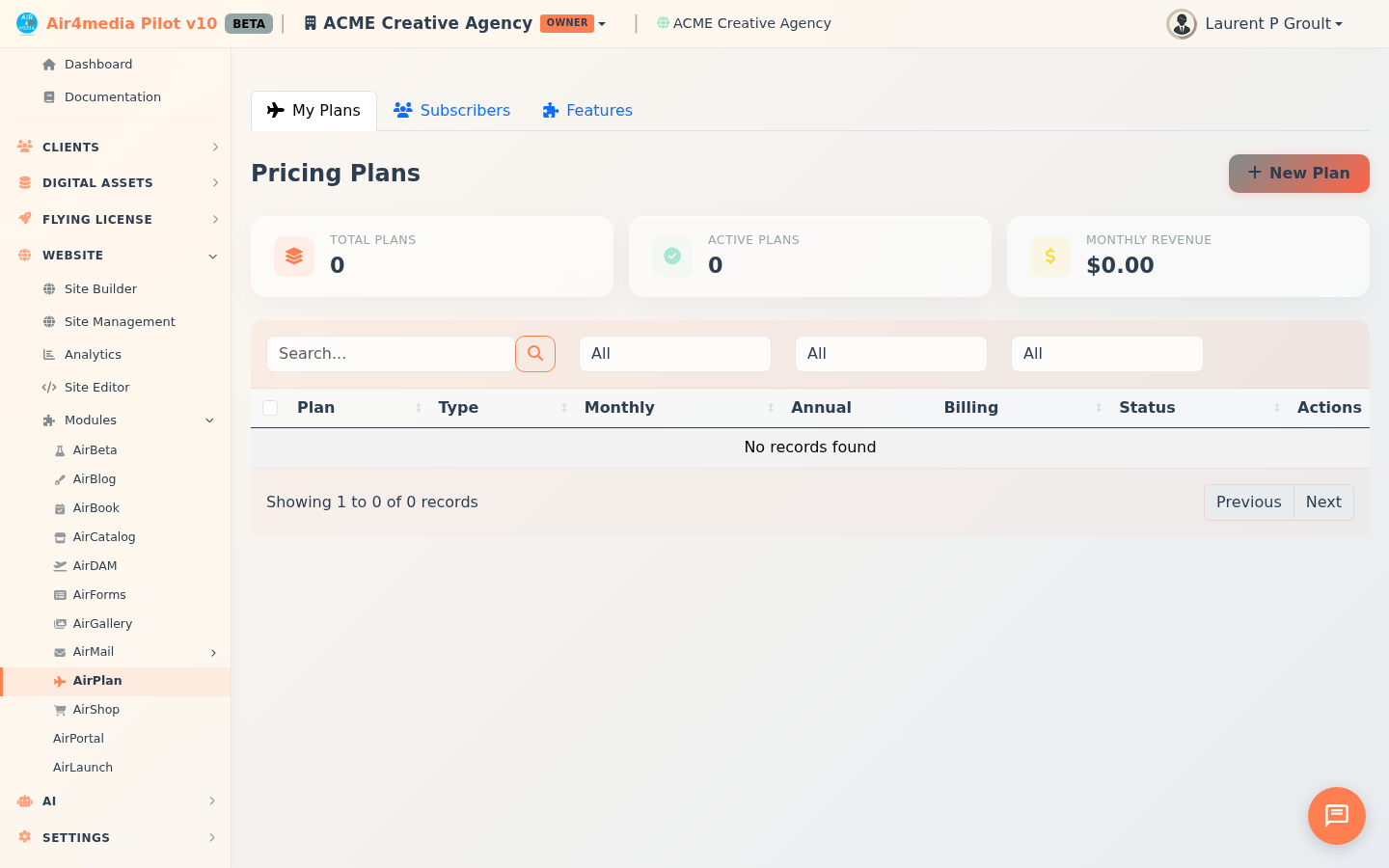
AirPlan
Create and manage the pricing plans for your business, then track who is subscribed to each one. ACME Creative Agency uses AirPlan to offer Starter, Professional, and Enterprise tiers — each with its own pricing, features, and subscriber list.
Key Features
- Plan Types: Build Subscription Plans, AI Credit packages, or Storage add-ons
- Flexible Billing: Support monthly, annual, one-time, and free billing on each plan
- Multi-currency: Set each plan's currency (USD, EUR, GBP, CAD, AUD)
- Trial & Intro Offers: Offer free trial periods and limited-time discounted pricing
- Plan Features: Define a feature list per plan with icons, values, and types — directly in the plan form or via the Features tab
- Signup Form Link: Connect an AirForm as the signup page so your pricing CTA sends visitors directly to your custom form
- Subscriber Management: Record and track who is subscribed, at what price, and in what status
- Payment History: View a subscriber's full payment history and retry failed payments in one click
- Dashboard Stats: See total plans, active plans, and monthly recurring revenue at a glance
How to Use
Create a Pricing Plan
- Go to AirPlan and click New Plan
- Select the Plan Type: Subscription Plan, AI Credits, or Storage
- Enter a plan name — the URL slug is generated automatically
- Add an optional tagline and description for the plan card
- Set pricing — entering a monthly price auto-fills the annual price (10× monthly); override if needed
- Choose a billing period: Monthly, Annual, One-time, or Free
- Select a currency and optionally set trial days
- Configure an intro offer — a percentage discount for a set number of months
- Pick a highlight color and optional icon to visually differentiate the plan
- Toggle Popular to show a badge; toggle Featured to highlight the plan on pricing pages
- Toggle Active to control visibility; optionally link an AirForm as the signup page
- Add features in the Features section at the bottom, then click Save Plan
Manage Plan Features
Features can be added in the plan form or in the dedicated Features tab.
- Click the Features tab and select a plan from the dropdown
- Click Add Feature — pick a preset key (users, storage, contacts, emails, AI credits, etc.) or enter a custom one; the label and icon fill in automatically
- Adjust the label, optional value, and icon as needed
- Set the type: Boolean (yes/no), Limit (Total, Monthly, Lifetime, One-time), or Text
- Toggle Included to mark the feature as included or excluded
- Drag rows to reorder, then click Save Features
Manage Existing Plans
- Click Edit on any plan row to update its details
- Use Archive to hide a plan without deleting it; use Restore to bring it back
Track Subscribers
- Click the Subscribers tab and then Add Subscriber
- Enter the subscriber's name and email, then select a plan, billing period, amount, and currency
- Set the subscription start/end dates and status: Active, Trialing, Paused, Past Due, or Cancelled
- Add optional notes
- To view payment history or retry a failed payment, open the subscriber and scroll to Payment History
- To cancel a subscription, click Cancel on the subscriber row and confirm
Tips
- Leave the annual price blank — it auto-calculates as 10× the monthly rate
- Mark your most popular plan with the Popular toggle to highlight it on pricing pages
- Use Limit (Monthly) for recurring usage caps (emails, AI credits) and Limit (Total) for hard caps (users, sites)
- Link an AirForm to capture custom signup fields beyond the default registration flow
- Archive old plans instead of deleting them to preserve subscriber history