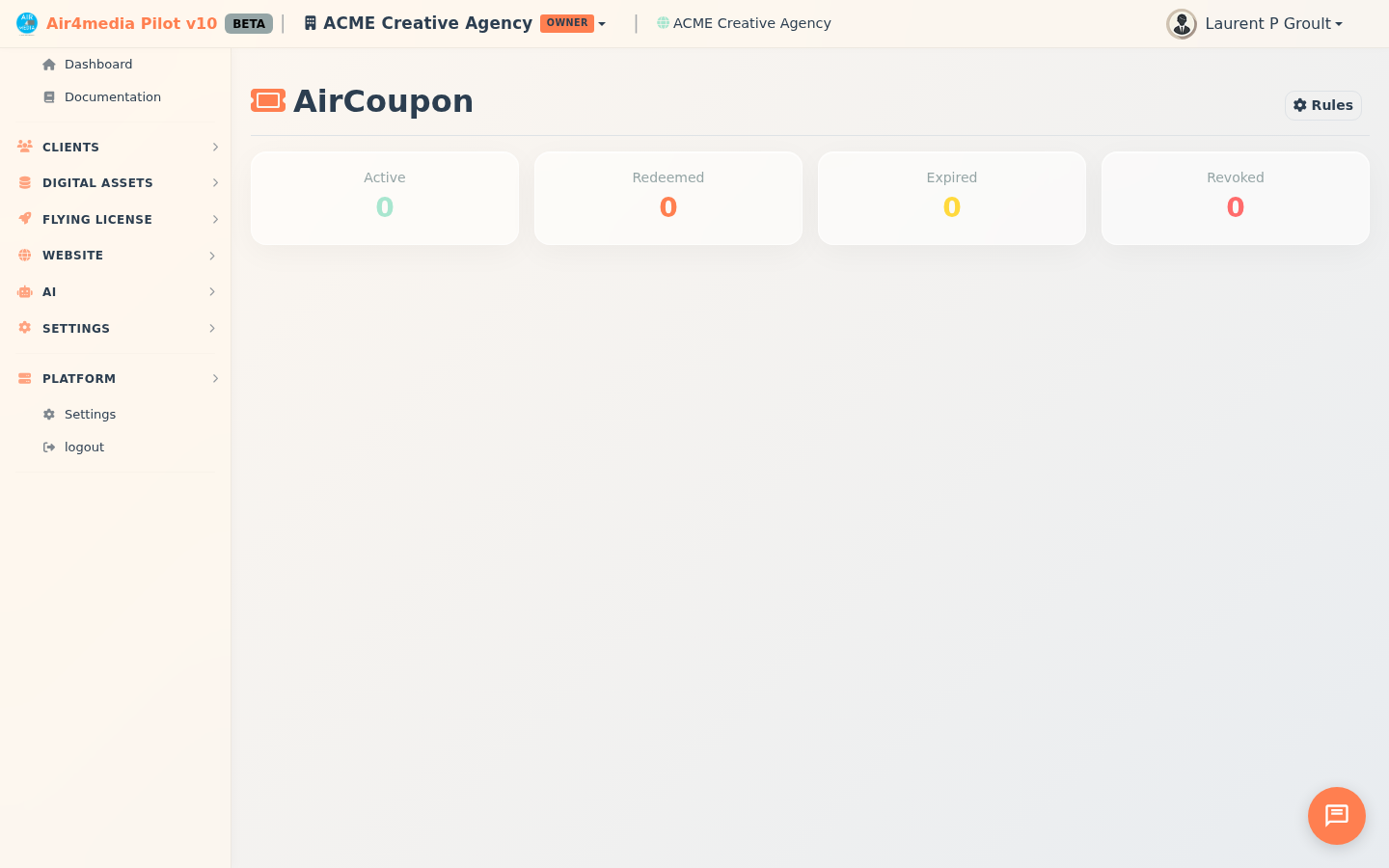
AirCoupon
Create and manage discount coupons and promotional codes for your customers — either manually on demand or automatically through rules tied to other platform actions.
Key Features
- Dashboard Overview: See at a glance how many coupons are Active, Redeemed, Expired, and Revoked.
- Manual Coupon Creation: Generate a coupon instantly with full control over the discount, duration, recipient, and optional description.
- Copy Code: Click Copy on any coupon row to copy the code to your clipboard in one click.
- Automated Rules: Set up rules that automatically issue coupons when specific events happen — such as a customer submitting a review or subscribing to a newsletter.
- Flexible Discounts: Offer a percentage off (e.g., 20% off) or a fixed dollar amount (e.g., $10 off).
- Transferable Coupons: Allow recipients to share their coupon with a friend. The detail view shows who claimed it.
- Revoke Coupons: Cancel individual coupons or revoke multiple at once using batch selection.
- Email Delivery: Automatically send the coupon code to the recipient's email when creating manually.
How to Use
Creating a Coupon Manually
- From the AirCoupon page, click Create in the coupon list toolbar.
- Choose the Discount Type: Percentage (%) or Fixed Amount ($).
- Enter the Discount Value (e.g., 15 for 15% off, or 10 for $10 off).
- Set how many days the coupon is Valid For (default: 90 days).
- Optionally add a Code Prefix to brand the coupon code (e.g., SUMMER → SUMMER-XXXX). Defaults to AIR if left blank.
- Set the Max Uses — how many times the code can be redeemed.
- Optionally enter a Recipient Email and Name to assign the coupon to a specific customer.
- Optionally add a Description to note the purpose of the coupon (internal reference only).
- Check Transferable if the recipient can share the code with someone else.
- Check Send coupon via email to deliver the code to the recipient automatically.
- Click Create.
Viewing a Coupon
Click View on any row to see full details: the code, discount, status, expiry date, usage count, source, recipient, and — for transferable coupons — who claimed it.
Revoking Coupons
- To revoke a single coupon, click Revoke on the coupon row.
- To revoke multiple coupons, select them with the checkboxes and choose Revoke Selected from the batch actions menu.
Setting Up Automated Rules
- Click the Rules button (top right of the page).
- Click Add Rule to configure a new automation.
- Give the rule a Name, then choose the Trigger: AirReview (Review Submitted) or AirMail (Subscribed).
- Set the discount type, value, duration, and optional code prefix.
- For AirReview rules, optionally set a Minimum Rating — the coupon only fires when a review meets or exceeds that star threshold.
- Check Transferable if the auto-generated coupon should be shareable.
- Click Save. The rule is active immediately and runs automatically from that point on.
Rules can be deleted from the Rules panel at any time.
Tips
- Use Code Prefixes to make campaigns easy to identify — e.g., WELCOME, LOYAL, SUMMER.
- For ACME Creative Agency, an AirReview rule with a minimum 4-star rating is a great way to reward happy clients automatically.
- An AirMail Subscribed rule makes a strong welcome offer for new newsletter sign-ups.
- Revoked coupons stay visible in the list for your records — they simply can no longer be used.
- Use the Copy button to grab a coupon code instantly and paste it into an email or chat without opening the detail view.
- Check the Redeemed stat on the dashboard to track how many offers have been taken up.